
QR Viewer – Manual
Scan codes safely – simply explained
Manual for version 2.2.0 · As of: October 2026 · For iPhone, iPad and Android
Download as PDF On GitHub1 What is QR Viewer?
QR codes and barcodes are everywhere: on posters, menus, parcels, tickets, groceries and letters. A code like this can hide many things – a link to a website, a phone number, Wi-Fi credentials or a prepared bank transfer. You cannot tell what is inside just by looking at it.
Many scanner apps open a link as soon as the camera recognizes the code. That is convenient, but risky: fraudsters stick fake codes on parking meters or charging stations, for example, to lure you to a fake payment page. This is called “quishing” (from “QR” and “phishing”).
QR Viewer does it differently: look first, then open. The app first only shows you what is in the code. Nothing happens until you explicitly confirm it – for example, before a link opens in the browser. This lets you check calmly where a code really leads.
In addition:
- no user account, no sign-in
- no advertising and no tracking
- free for iPhone, iPad and Android devices
- available in 13 languages – the app follows the language of your device
2 Getting started
Install: You will find QR Viewer in the App Store (iPhone, iPad) and on Google Play (Android). Search for “QR Viewer”.
Allow the camera: When you start the app for the first time, your device asks whether QR Viewer may use the camera. Tap “Allow” or “While using the app”. Without the camera the app cannot read codes. The camera image is only analysed on your device – no photos are stored or sent anywhere.
Did you deny camera access by mistake? Open your device's Settings, look for “QR Viewer” and turn on the camera.
3 Scanning a code
After starting the app you see the camera image. Hold your device so that the code is clearly visible in the picture. As soon as QR Viewer recognizes it, the device vibrates briefly and the result page opens.
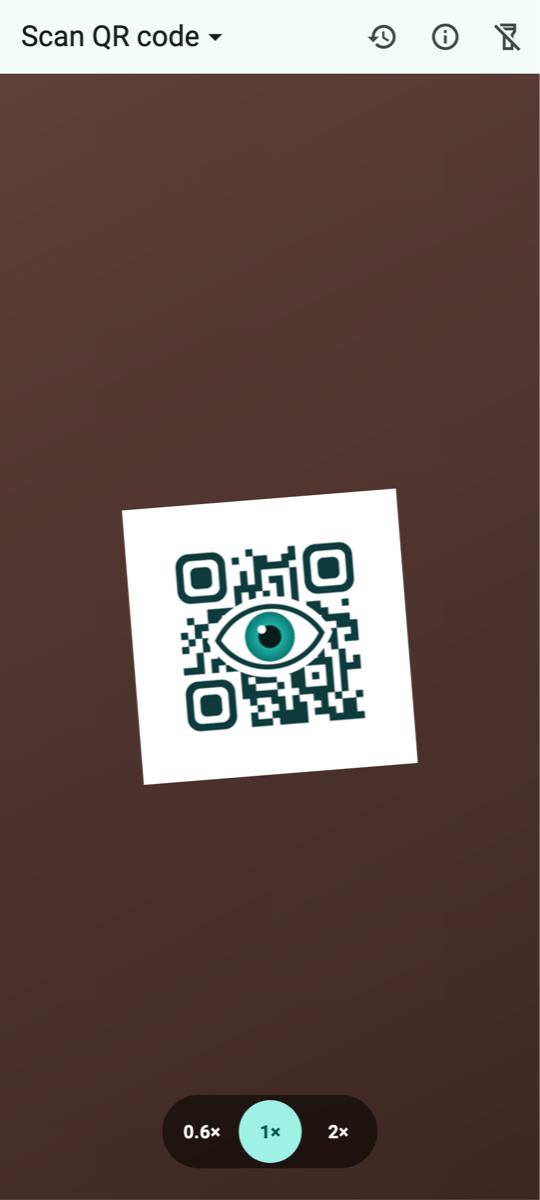
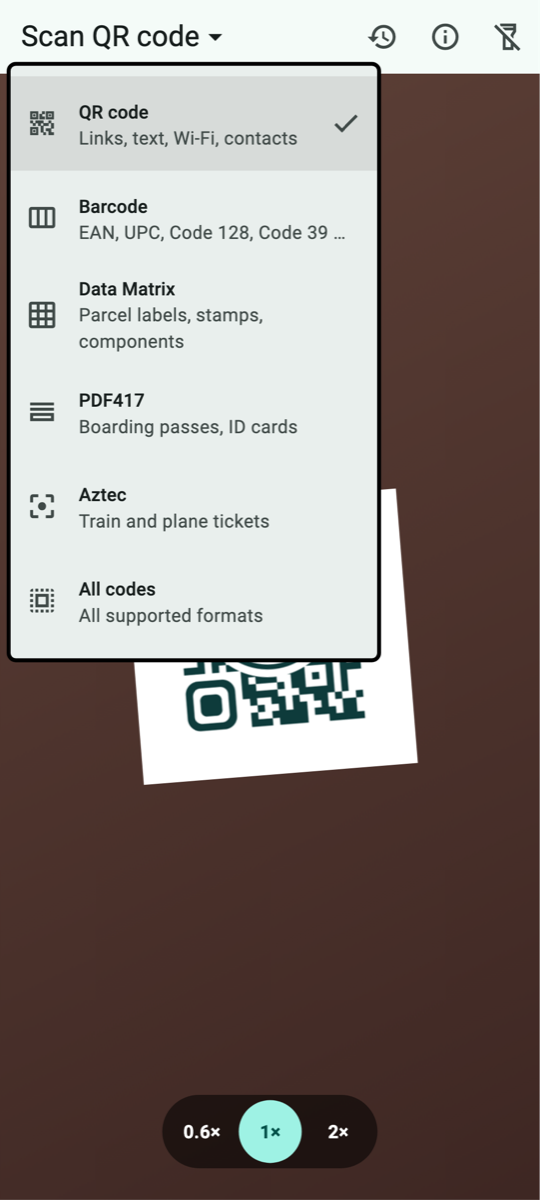
Left: the scan screen with zoom levels at the bottom. Right: the menu in the title where you choose the type of code. (The camera image is simulated.)
Choose the scan type: At the top left it says, for example, “Scan QR code”. Tap it to open a menu:
- QR code – links, text, Wi-Fi access, contacts and much more
- Barcode – the bar codes on products, books and labels
- Data Matrix – small square codes, e.g. on postage stamps and electronic components
- PDF417 – wide, stacked codes, e.g. on boarding passes
- Aztec – codes with a “bull's-eye” pattern in the middle, e.g. on train tickets
- All codes – recognizes everything your device can read
QR Viewer remembers your choice. If you do not know what kind of code you have in front of you, simply choose “All codes”. Choosing a specific type has one advantage: if several codes are next to each other, the app only reads the one you want.
Zoom: At the bottom of the camera image you find round buttons such as “0.6×”, “1×” or “2×” – just like in your device's camera app. With “2×” or more you can bring small or distant codes closer. Which levels are available depends on your device's cameras.
Flashlight: The lamp icon at the top right turns the light on and off – handy in dark places.
Tips if a code is not recognized: hold the device still and a little further away so the camera can focus. Avoid reflections on glossy paper or screens. Check that the right scan type is selected, or choose “All codes”.
4 Understanding the result
After scanning, the result page opens. At the very top it says what the app has recognized, for example “Contact”, “Wi-Fi credentials” or “Product code”. Below that you see:
- Format: which kind of code was scanned, e.g. “QR code” or “EAN-13”
- Host: for links, the address of the website the link leads to – so you can see at a glance where it goes
- the data card: the details from the code, neatly labelled, e.g. “Name”, “Phone” or “IBAN”. The copy icon next to each field copies exactly that detail.
- Raw content: below that you see the content of the code exactly as it is stored – character by character
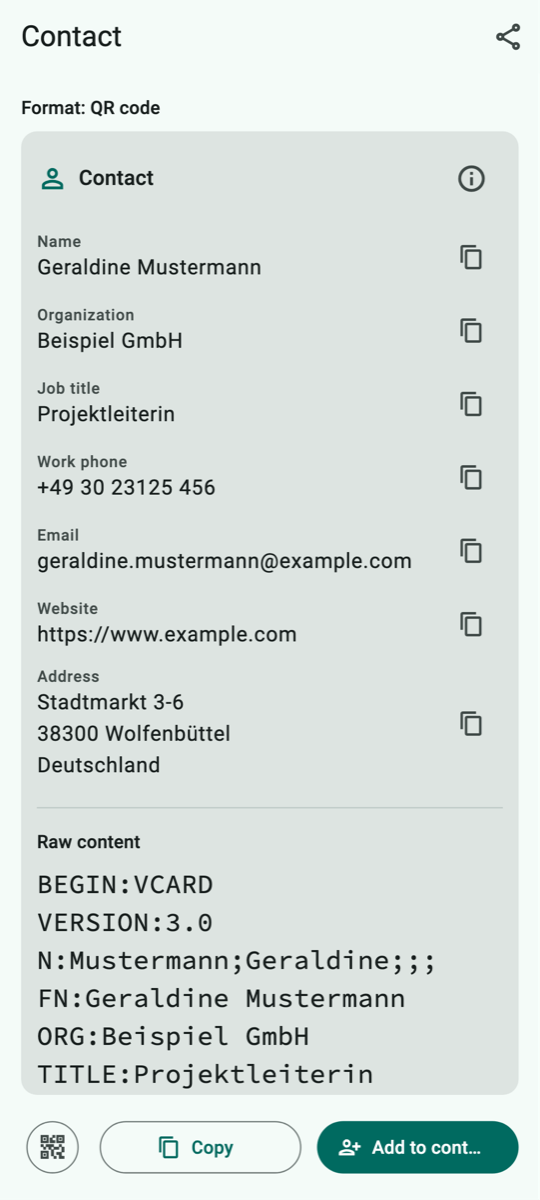
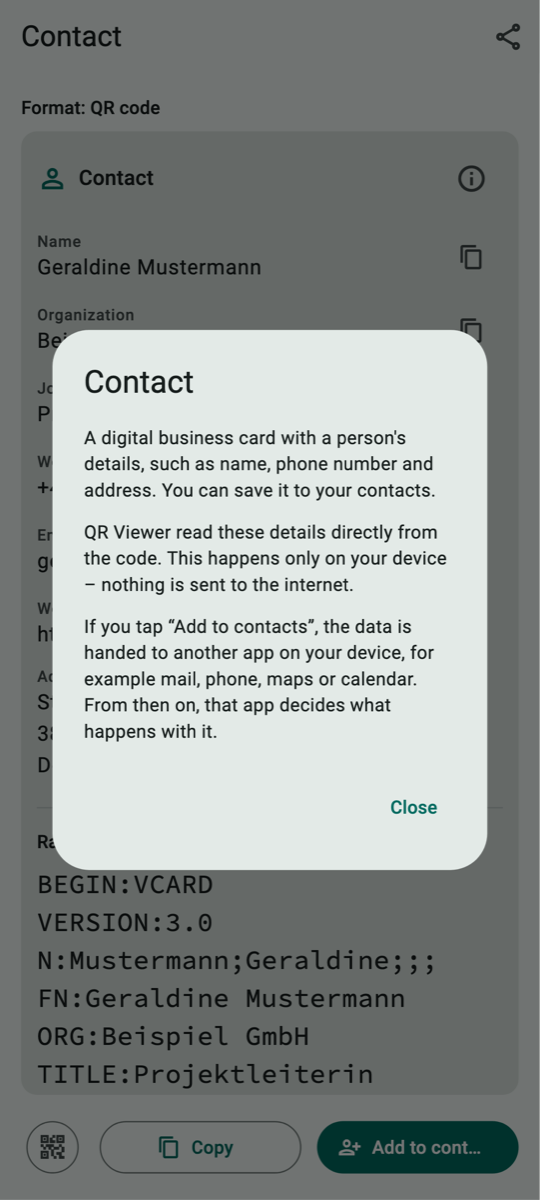
Left: the result for a digital business card. Right: the info button explains what kind of data this is.
The info button: At the top right of every data card there is a small “i”. Tap it and QR Viewer explains in plain words what kind of data the code contains, that it was read only on your device, and what happens if you tap the action button.
Some codes do not contain text but “binary data” – electronic tickets, for example. QR Viewer shows them as columns of numbers (hex view). Tickets following the German VDV standard, such as the Deutschlandticket, can even be decoded and shown in readable form (see appendix A.30).
5 Actions – always with a confirmation
At the bottom of the result page you find an action button that depends on the content, for example:
- Open … – opens a link in the browser
- Write email…, Call…, Write SMS…
- Show on map… – shows a place in your maps app
- Add to contacts…, Add to calendar… – saves a business card or an event
- Open in authenticator… – hands a 2FA key to your authenticator app
- Look up online… – searches the internet for a product or book number
- Track shipment… – opens Deutsche Post shipment tracking
The three dots “…” mean: a confirmation follows. Before anything is opened, QR Viewer shows you exactly what is about to happen. Only when you tap “Open” does it continue. With “Cancel” nothing happens at all.
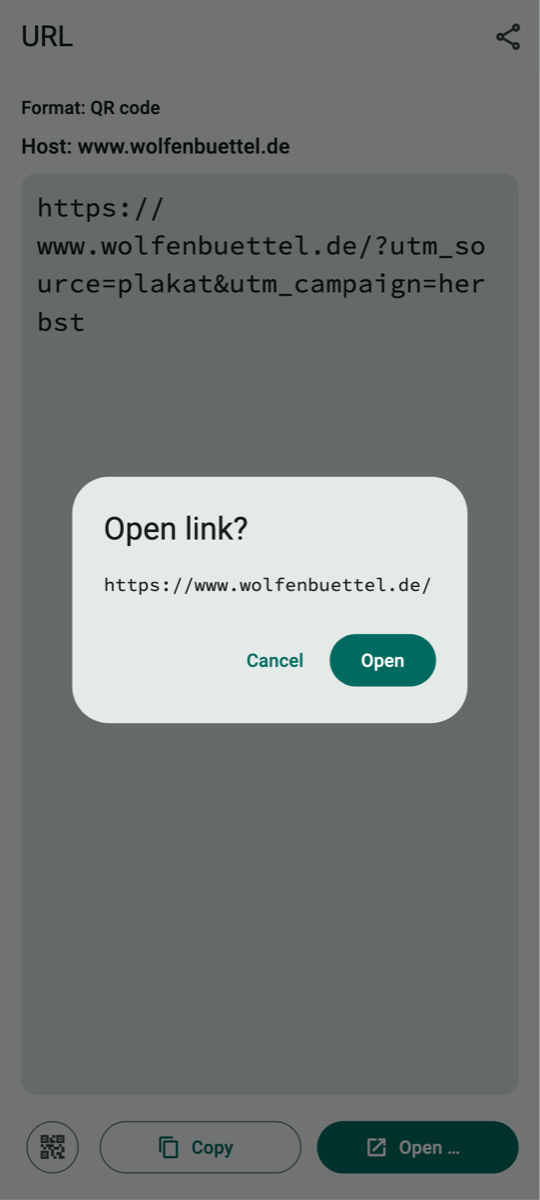
The confirmation before opening a link. The tracking add-ons (utm_…) have already been removed.
Tracking add-ons are removed: Many links contain additions such as utm_source=… or fbclid=…. Companies use them to track where you came from. QR Viewer removes known add-ons of this kind before the link is opened. The confirmation already shows the cleaned link.
Important: QR Viewer never calls anyone by itself and does not send emails or text messages. The app only opens the responsible app (phone, mail, messages) with the prepared details. You always send it yourself.
6 Showing, copying and sharing the code
Show code: The small button with the QR code icon on the far left of the bottom row shows the scanned code as an image in a window. This lets you scan it with another device, for example. QR Viewer draws the code in its original format where possible, such as an EAN-13 barcode, Data Matrix or Aztec. Formats the app cannot draw (Micro QR, MaxiCode, GS1 DataBar) are shown as a QR code with the same content, and a note below the image tells you so.
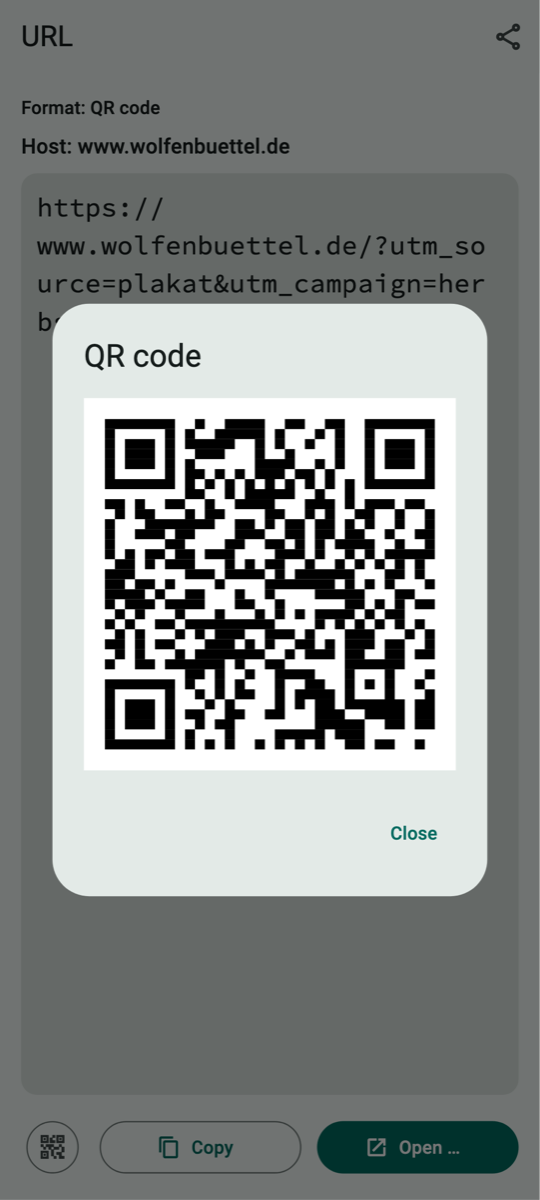
The scanned link as a QR code to pass on.
Anyone who can see your screen can scan a code shown there. Only show codes with Wi-Fi passwords or 2FA keys when you really mean to.
Copy: The “Copy” button puts the whole content on the clipboard. From there you can paste it into any other app. Single details are copied with the copy icon next to the field in the data card.
Share: The share icon at the top right opens your device's share menu. With it you can, for example, send the content in a message or save it in a note. You decide what you share and where – QR Viewer does not send anything on its own.
7 The history
QR Viewer remembers the last 25 scanned codes. Open the history with the clock icon at the top of the scan screen.
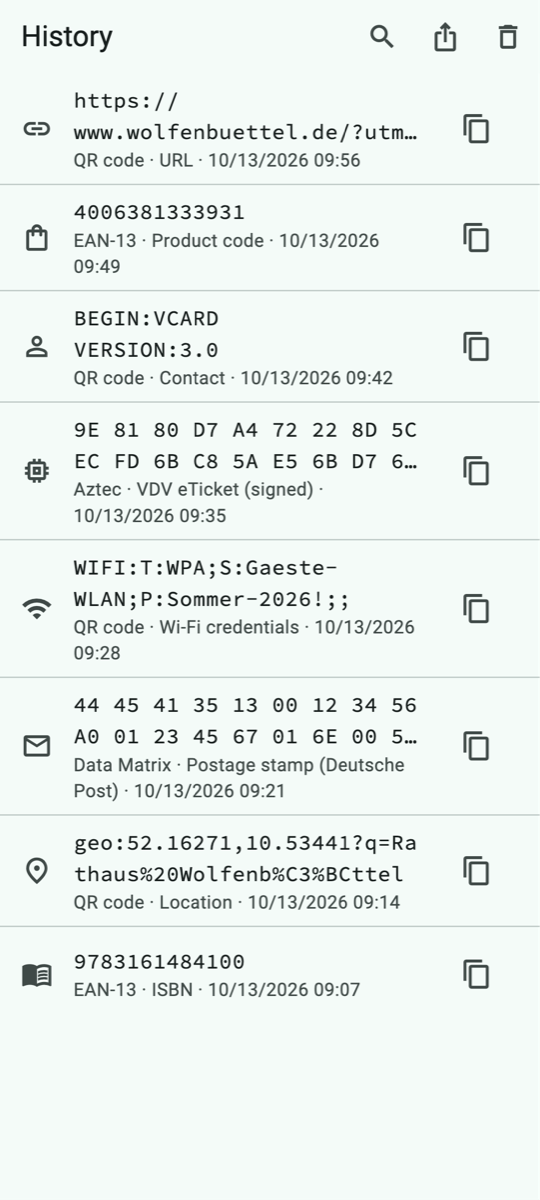
The history with search, export and delete at the top right.
- View again: Tap an entry to open its result page again.
- Copy: The copy icon on the right copies the content directly.
- Search: The magnifying glass searches content, format and type.
- Delete one entry: Swipe an entry to the side. If you made a mistake, tap “Undo”.
- Delete everything: The bin icon clears the whole history.
- Export: The share icon passes the history on as a table (CSV) or as a file for programs (JSON).
The history stays on your device and is stored there encrypted. But keep in mind: it may contain confidential details such as Wi-Fi passwords. Delete such entries when you no longer need them. QR Viewer never stores secret keys for two-step sign-in (2FA).
8 Info and help
The “i” icon on the scan screen opens the info dialog. There you see the version of the app and the date it was built.
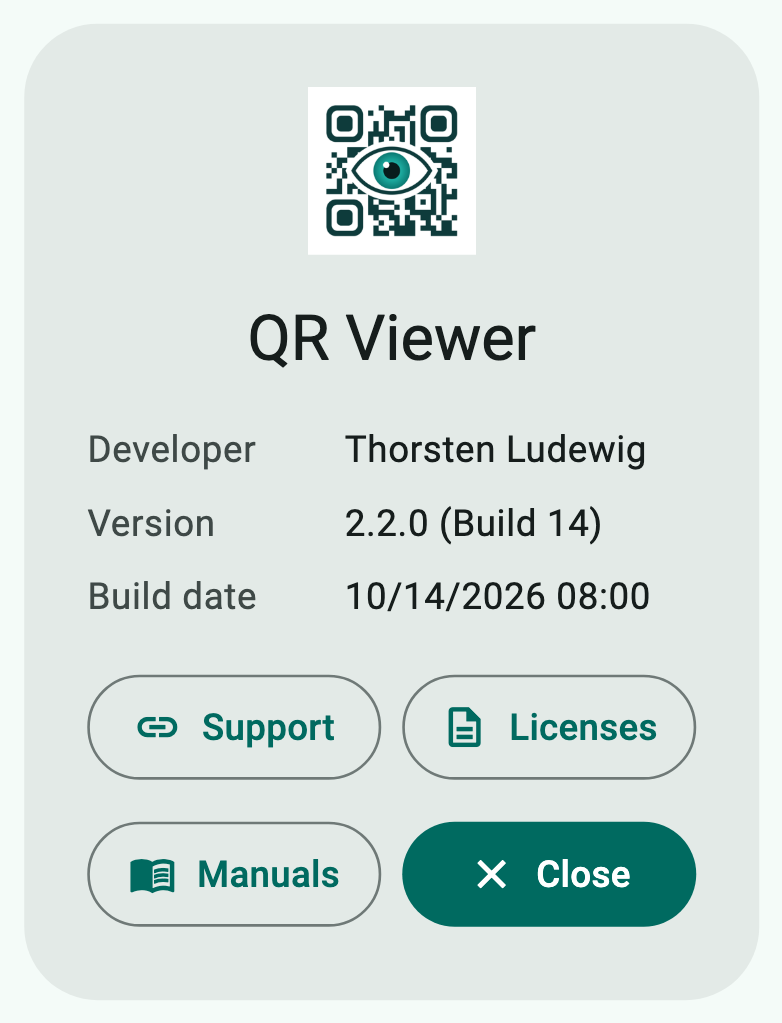
The info dialog.
- Support opens the page for questions and bug reports in the browser (github.com/thorsten-l/qr_viewer/issues).
- Licenses shows the licences of the components used.
- Manuals opens the page in the browser where this manual can be downloaded in English and German (github.com/thorsten-l/qr_viewer/tree/main/docs).
9 Privacy – how QR Viewer protects your data
Privacy is at the heart of QR Viewer. This chapter sums up in plain words what happens to your data – and what does not. The full privacy policy is available at github.com/thorsten-l/qr_viewer/blob/main/PRIVACY.md.
The essentials
- QR Viewer collects no personal data.
- There is no user account, no advertising, no analysis of your behaviour (tracking) and no servers of its own.
- Codes are read and analysed only on your device.
- Data goes to the internet only if you explicitly confirm it.
Camera
The app needs the camera to read codes. The camera image is only analysed on your device. No photos or videos are stored or transmitted. You can withdraw camera access at any time in your device settings.
What is stored on your device
Only the contents of the last 25 scans (the history) and the most recently chosen scan type and zoom level are stored. This data stays on your device. You can delete single entries or the whole history at any time. If you delete the app, all of its data is gone as well.
The history is encrypted (AES-256). The app creates the key randomly when it is installed. It is kept only in your iPhone's Keychain or the Android Keystore, is not synced with iCloud and is never part of a backup.
Backups: On Android, QR Viewer is excluded from Google backup. An iCloud or device backup on iOS may contain the history, but only encrypted – without the key it cannot be read. If you restore a backup onto a new device, the history therefore starts empty.
Particularly sensitive content
- Keys for two-step sign-in (2FA) are never stored in the history. The result page points this out.
- Wi-Fi passwords stay in the history like any other content until you delete them.
- Setup codes of smart home devices (Matter) are only displayed. The app does not set up any device and sends nothing to manufacturers or home apps. These codes also stay in the history until you delete them.
- Tickets (e.g. Deutschlandticket) are decoded only on your device. The app shows the name exactly as it is stored in the ticket – written out or shortened, depending on the ticket (e.g. “G…e M…n”). To check that a ticket is genuine it uses publicly known keys that come with the app – no internet connection is needed for this.
- Bank transfer details (GiroCode) are only displayed. QR Viewer does not transfer money and does not pass the data on to banks.
When data leaves your device
Only when you trigger an action yourself and confirm it:
- Open a link: Your browser loads the website. Like every website, it sees your internet address. QR Viewer removes known tracking add-ons beforehand.
- Look up online: A product number is sent to the search engine DuckDuckGo, a book number (ISBN) to Open Library.
- Track shipment: The tracking number goes to Deutsche Post.
- Email, call, SMS, map, contacts, calendar, authenticator: The details go to the respective app on your device. What happens to them there is decided by that app.
- Copy, share, export: Only when you tap it, and only to the app you choose.
Every website or app you open has its own privacy rules. The info button in every data card tells you beforehand where the data would go.
Android only
On Android devices, QR Viewer uses a software library from Google (“ML Kit”) to recognize codes. It also works on your device; camera images are not sent to Google. However, ML Kit may send technical details to Google, such as device model, Android version, app version and speed measurements. On iPhone and iPad, Apple's built-in technology recognizes the codes without any other provider being involved.
Your rights
Since the developer receives no personal data from you, there is no data about you that could be disclosed, corrected or deleted. For questions about privacy you can write to t.ludewig@gmail.com. You also have the right to complain to a data protection supervisory authority.
Tips for safe scanning
- Check the host: does the internet address match what you expect? A city parking meter should not point to an unknown address.
- Look closely to see whether a code has been covered with a sticker – for example on parking meters, charging stations or posters.
- After scanning, do not enter passwords or bank details on a page you do not fully trust.
- For a bank transfer, check every detail before you confirm it in your banking app.
- Do not pass on codes with Wi-Fi passwords or 2FA keys, and delete them from the history when you no longer need them.
10 Frequently asked questions
The app does not recognize a code. Choose “All codes”, hold the device still and a little further away, and make sure there is enough light (flashlight). A higher zoom level helps with very small codes. Some rare kinds of code cannot be read by every device (see appendix).
I only see a black picture. Camera access is probably missing. Allow it in your device settings under “QR Viewer”.
Nothing happens when I tap an action. Then there is no suitable app installed on your device, for example no authenticator app. QR Viewer then shows “No app found to open this.”
How do I change the language? QR Viewer follows the language of your device. On Android 13 and later and on iPhone you can also choose a different language just for QR Viewer in the settings.
Does the app cost anything? No. There are no in-app purchases and no advertising either.
Appendix: All codes at a glance
On the following pages you find every kind of code that QR Viewer can read – each on its own page. All example codes are real and can be scanned: simply point the camera at the code on the screen or on a printout and try it out.
Each page explains what kind of code it is, where you will see it in everyday life, what the example contains, how QR Viewer shows it and what you can do with it. The picture on the right is the app's result page.
The example codes contain German sample data, because QR Viewer was developed in Germany. All names, numbers and addresses are made up – with two exceptions: the location is the real town hall in Wolfenbüttel, and the first ticket (A.30) is an official sample ticket in the name of Geraldine Mustermann. The second ticket (A.31) is a self-made test ticket.
Two kinds of code (Micro QR code and GS1 DataBar) can only be read by the iPhone and iPad version, because Android's recognition technology does not support them. This is noted on the respective page.
| No. | Code | Scan type | Devices |
|---|---|---|---|
| A.1 | QR code with text | QR code or All codes | iPhone, iPad and Android |
| A.2 | QR code with a link | QR code or All codes | iPhone, iPad and Android |
| A.3 | QR code with a bookmark (MEBKM) | QR code or All codes | iPhone, iPad and Android |
| A.4 | QR code with an email | QR code or All codes | iPhone, iPad and Android |
| A.5 | QR code with a phone number | QR code or All codes | iPhone, iPad and Android |
| A.6 | QR code with an SMS | QR code or All codes | iPhone, iPad and Android |
| A.7 | QR code with a location | QR code or All codes | iPhone, iPad and Android |
| A.8 | QR code with a contact (business card) | QR code or All codes | iPhone, iPad and Android |
| A.9 | QR code with an event | QR code or All codes | iPhone, iPad and Android |
| A.10 | QR code with Wi-Fi access | QR code or All codes | iPhone, iPad and Android |
| A.11 | QR code with a bank transfer (GiroCode) | QR code or All codes | iPhone, iPad and Android |
| A.12 | QR code with a one-time password (2FA) | QR code or All codes | iPhone, iPad and Android |
| A.13 | QR code with JSON data | QR code or All codes | iPhone, iPad and Android |
| A.14 | QR code of a smart home device (Matter) | QR code or All codes | iPhone, iPad and Android |
| A.15 | Micro QR code | All codes | iPhone and iPad only |
| A.16 | EAN-13 – product number | Barcode or All codes | iPhone, iPad and Android |
| A.17 | EAN-13 – book number (ISBN) | Barcode or All codes | iPhone, iPad and Android |
| A.18 | EAN-8 – short product number | Barcode or All codes | iPhone, iPad and Android |
| A.19 | UPC-A – American product number | Barcode or All codes | iPhone, iPad and Android |
| A.20 | UPC-E – short American product number | Barcode or All codes | iPhone, iPad and Android |
| A.21 | ITF-14 – shipping carton | Barcode or All codes | iPhone, iPad and Android |
| A.22 | Code 128 | Barcode or All codes | iPhone, iPad and Android |
| A.23 | Code 39 | Barcode or All codes | iPhone, iPad and Android |
| A.24 | Code 93 | Barcode or All codes | iPhone, iPad and Android |
| A.25 | Codabar | Barcode or All codes | iPhone, iPad and Android |
| A.26 | ITF (Interleaved 2 of 5) | All codes | iPhone, iPad and Android |
| A.27 | GS1 DataBar | All codes | iPhone and iPad only |
| A.28 | Data Matrix – Deutsche Post stamp | Data Matrix or All codes | iPhone, iPad and Android |
| A.29 | PDF417 | PDF417 or All codes | iPhone, iPad and Android |
| A.30 | Aztec – Deutschlandticket (VDV eTicket) | Aztec or All codes | iPhone, iPad and Android |
| A.31 | Aztec – test ticket from an unknown issuer | Aztec or All codes | iPhone, iPad and Android |
A.1 QR code with text
Scan type: QR code or All codes · Devices: iPhone, iPad and Android
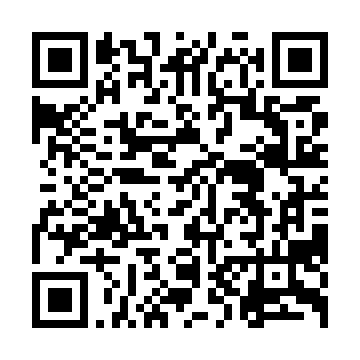
Example code to try out
What is it?
The QR code is the well-known square with three large corner markers. It was invented in Japan in 1994 to label car parts and can store up to several thousand characters. Even if part of it is dirty or damaged, it can usually still be read. The simplest content is plain text.
Where will you see it?
On signs in museums, at sights, on packaging or as a short message on cards.
What is in the example?
“Willkommen im Rathaus Wolfenbüttel! Die Bürgerberatung findest du im Erdgeschoss.” (German for: Welcome to Wolfenbüttel town hall! The citizens' advice desk is on the ground floor.)
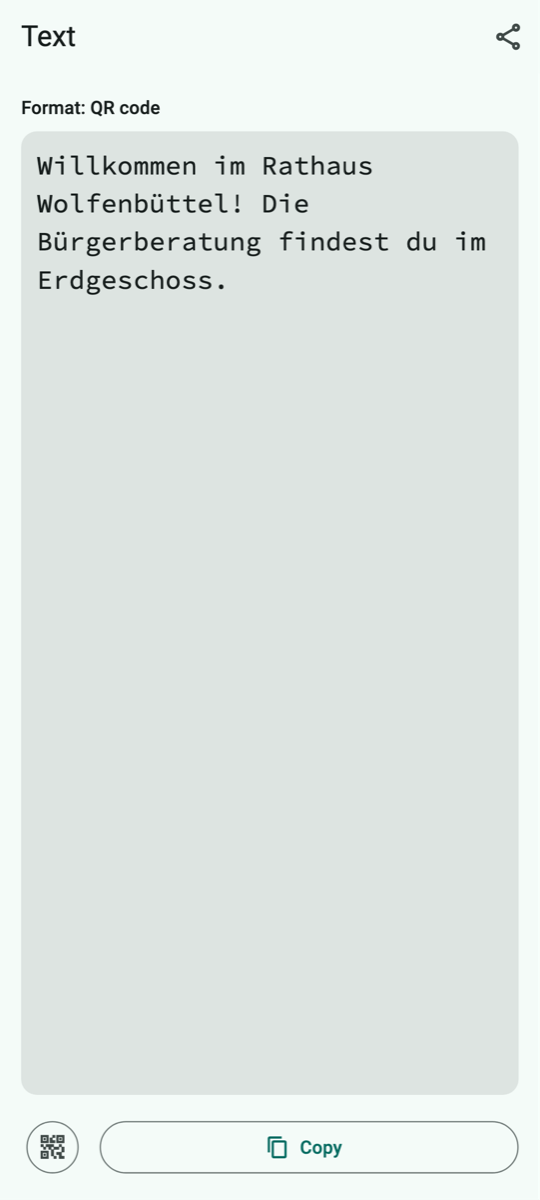
How QR Viewer shows it
How QR Viewer handles the code
QR Viewer shows the text large and easy to read. Since text cannot trigger anything, there is no data card and no action button.
What you can do with it
Copy or share the text.
Keep in mind: Text is harmless. But if it contains an internet address or phone number, check it before you type it in.
A.2 QR code with a link
Scan type: QR code or All codes · Devices: iPhone, iPad and Android
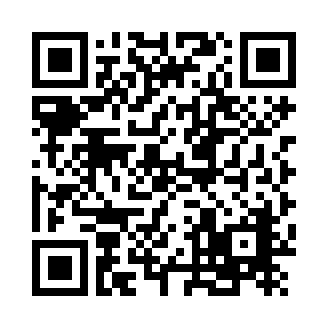
Example code to try out
What is it?
A link (also URL or web address) leads to a page on the internet. This is the most common content of QR codes.
Where will you see it?
On posters, menus, flyers, parking meters, charging stations, invoices and in magazines.
What is in the example?
https://www.wolfenbuettel.de/?utm_source=plakat&utm_campaign=herbst – a link to the website of the town of Wolfenbüttel with two tracking add-ons (utm_…).
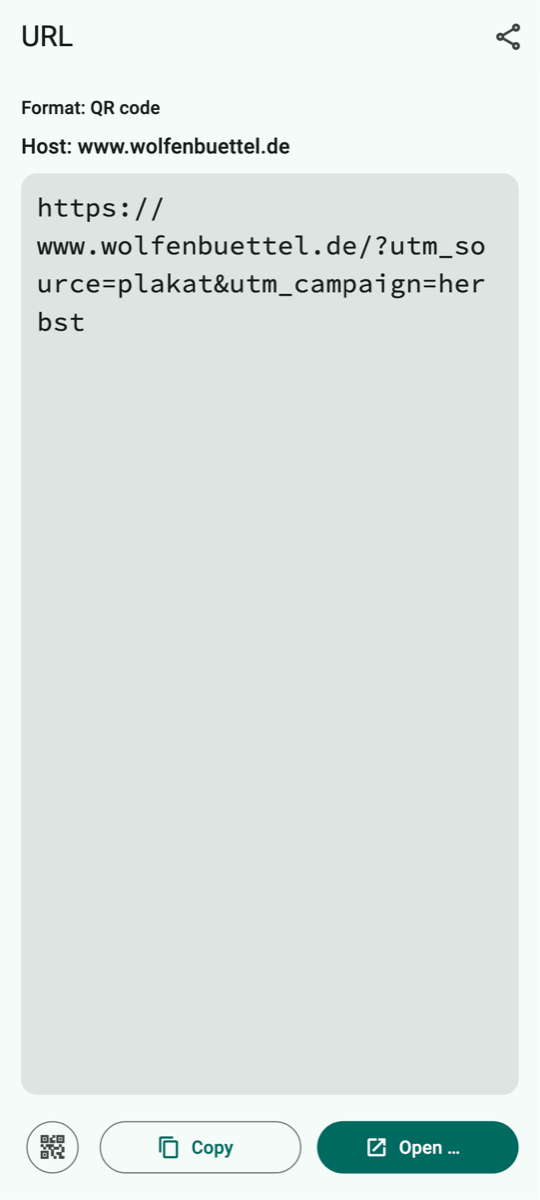
How QR Viewer shows it
How QR Viewer handles the code
Under “Host” you see the address of the website (www.wolfenbuettel.de). Below it you see the full link. It is only opened via “Open …” and after a confirmation. QR Viewer removes the tracking add-ons in the process.
What you can do with it
Open the link in the browser after confirming, copy, share.
Keep in mind: Check the host! Fraudsters use addresses that look like real ones (e.g. “wolfenbuettel-parking.info”). If in doubt, do not open the link.
A.3 QR code with a bookmark (MEBKM)
Scan type: QR code or All codes · Devices: iPhone, iPad and Android
Example code to try out
What is it?
A bookmark is a link together with a name for it. The MEBKM format comes from the Japanese mobile operator NTT Docomo, whose phones could save the link directly as a bookmark. Many scanner apps still create it today.
Where will you see it?
On posters, flyers and business cards, especially with codes from older or Japanese QR code generators.
What is in the example?
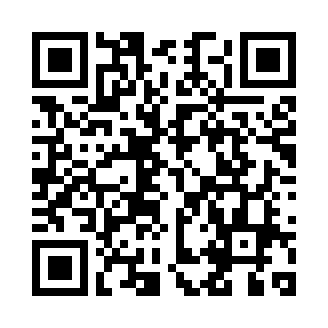
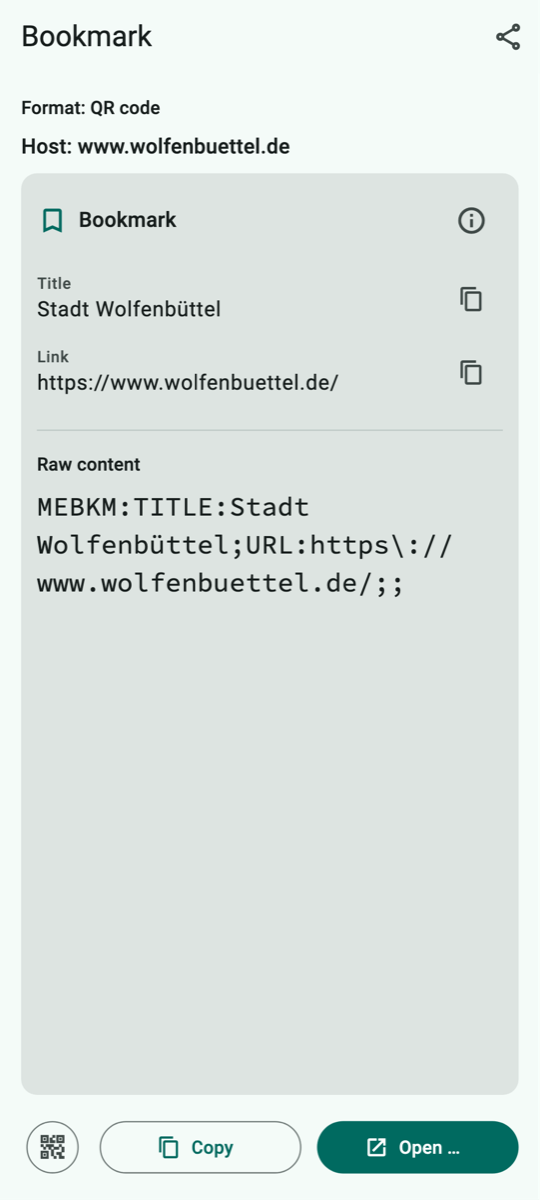
The bookmark “Stadt Wolfenbüttel” (town of Wolfenbüttel) with the link https://www.wolfenbuettel.de/.
How QR Viewer shows it
How QR Viewer handles the code
The “Bookmark” data card shows the name and the link, with the host above it. A bookmark without a link only shows the name; then there is no open button.
What you can do with it
“Open …” opens the link in the browser after a confirmation, just like a normal link. You can save it as a bookmark there yourself.
Keep in mind: The name can claim anything – what counts is the host. Check it before opening the link.
A.4 QR code with an email
Scan type: QR code or All codes · Devices: iPhone, iPad and Android
Example code to try out
What is it?
The code contains an email address, often with a subject and text already filled in. So you do not have to type anything.
Where will you see it?
On business cards, notices (“Write to us!”) or paper contact forms.
What is in the example?
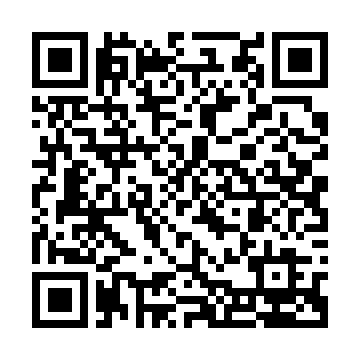
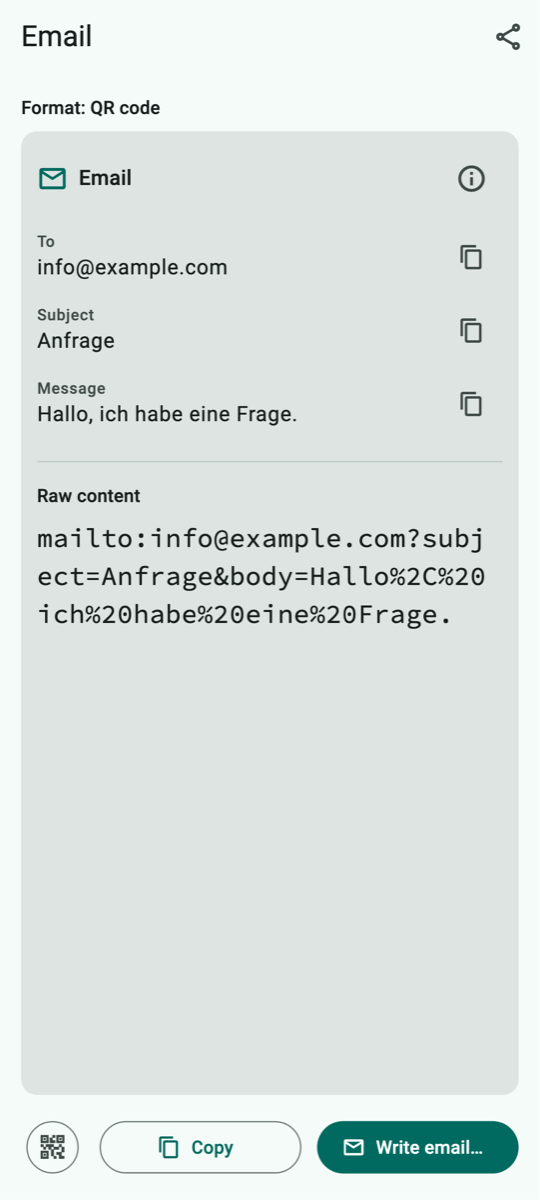
An email to info@example.com with the subject “Anfrage” (enquiry) and the text “Hallo, ich habe eine Frage.” (Hello, I have a question.)
How QR Viewer shows it
How QR Viewer handles the code
The data card shows recipient, subject and message separately. Each detail can be copied on its own.
What you can do with it
“Write email…” opens your mail app with all details. It is only sent when you tap “Send” yourself.
Keep in mind: Check the recipient address before sending personal details.
A.5 QR code with a phone number
Scan type: QR code or All codes · Devices: iPhone, iPad and Android
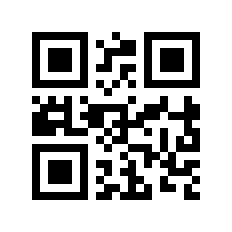
Example code to try out
What is it?
The code contains a phone number.
Where will you see it?
On advertising signs, company vehicles, emergency notices or business cards.
What is in the example?
+49 30 23125456 (a German number reserved for examples).
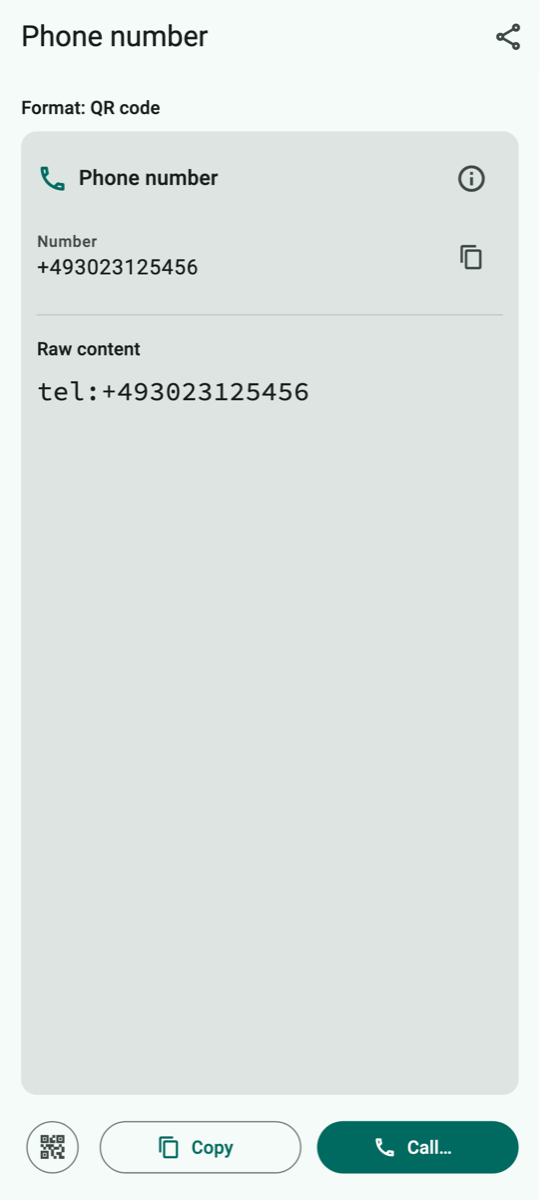
How QR Viewer shows it
How QR Viewer handles the code
The data card shows the phone number.
What you can do with it
“Call…” opens the phone app with the number after a confirmation. QR Viewer never calls by itself – you start the call in the phone app.
Keep in mind: Watch out for expensive premium-rate numbers and unknown foreign country codes.
A.6 QR code with an SMS
Scan type: QR code or All codes · Devices: iPhone, iPad and Android
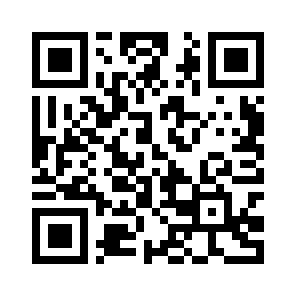
Example code to try out
What is it?
The code contains a phone number and a prepared text message (SMS).
Where will you see it?
In competitions, donation campaigns or call-back requests.
What is in the example?
An SMS to +49 30 23125456 with the text “Bitte ruf mich zurück.” (Please call me back.)
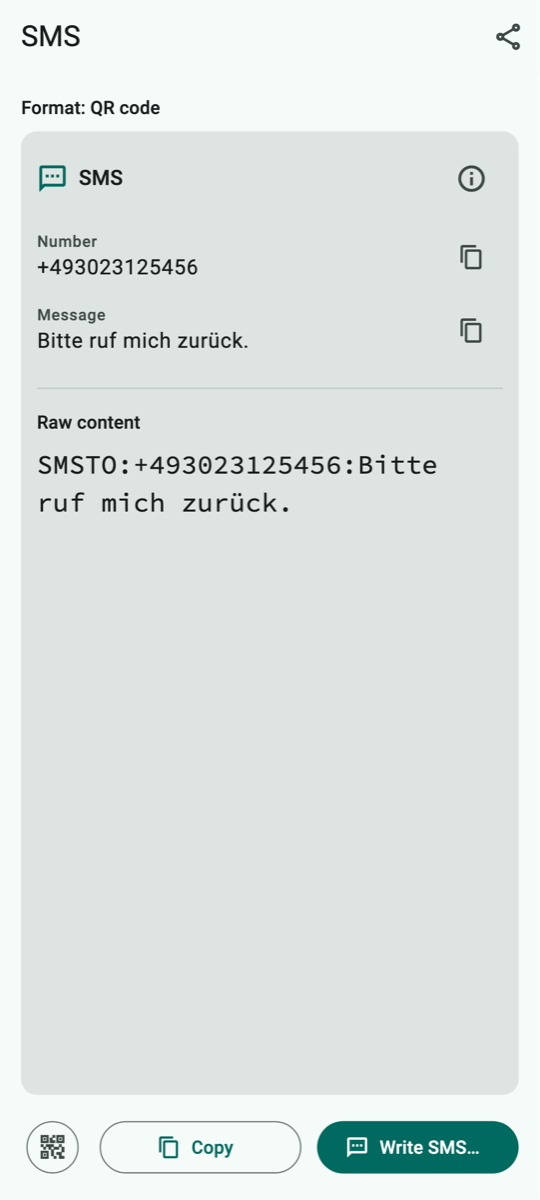
How QR Viewer shows it
How QR Viewer handles the code
The data card shows the phone number and the message.
What you can do with it
“Write SMS…” opens your messages app after a confirmation. The SMS is only sent when you send it yourself.
Keep in mind: Text messages to short numbers can cost money or start a subscription. Read the text before you send it.
A.7 QR code with a location
Scan type: QR code or All codes · Devices: iPhone, iPad and Android
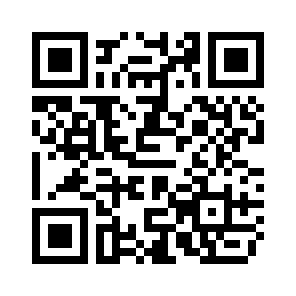
Example code to try out
What is it?
The code contains a place on Earth, given as latitude and longitude – just like on a navigation device.
Where will you see it?
On invitations, hiking maps, information boards or event posters (“How to find us”).
What is in the example?
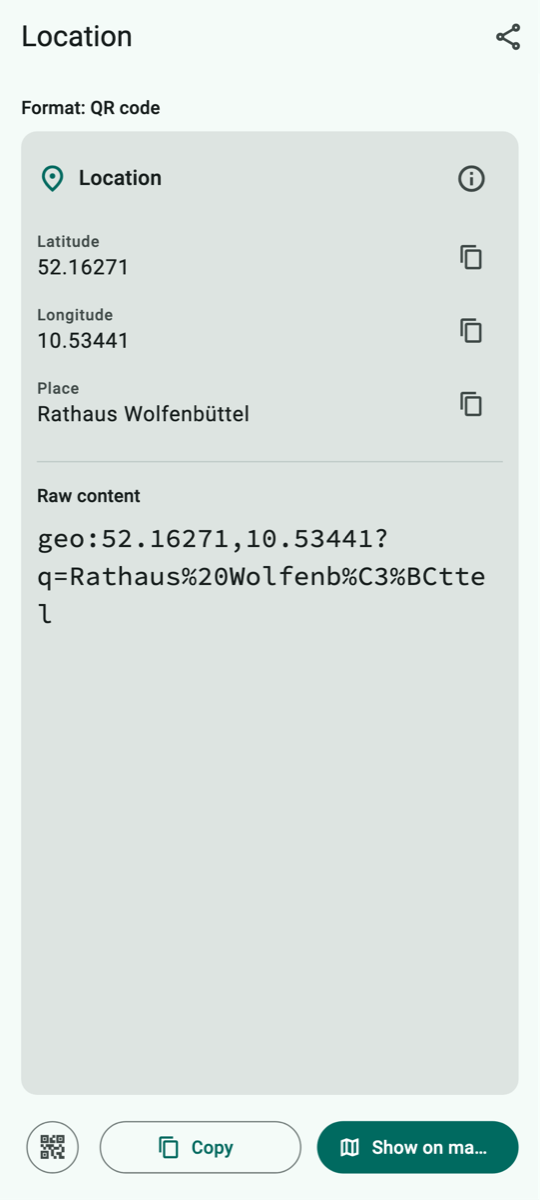
Wolfenbüttel town hall on the Stadtmarkt square: latitude 52.16271, longitude 10.53441.
How QR Viewer shows it
How QR Viewer handles the code
The data card shows latitude, longitude and the name of the place.
What you can do with it
“Show on map…” opens your maps app (e.g. Apple Maps or Google Maps) at exactly this point after a confirmation. From there you can get directions.
Keep in mind: The maps app learns which place you are looking at.
A.8 QR code with a contact (business card)
Scan type: QR code or All codes · Devices: iPhone, iPad and Android
Example code to try out
What is it?
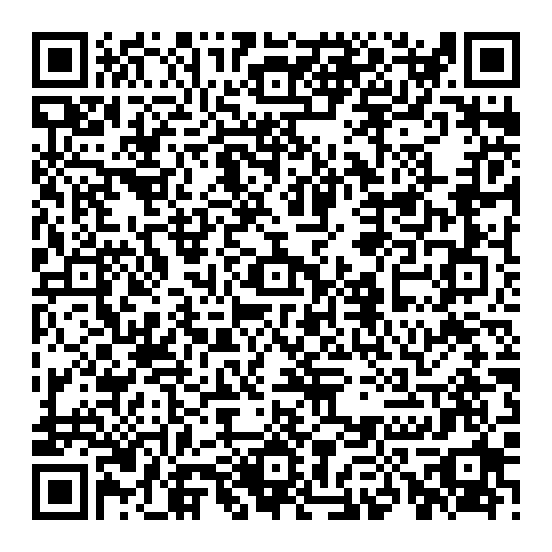
A digital business card (technical term “vCard”). It can contain name, company, phone numbers, email, address and website. QR Viewer also understands the shorter forms MECARD and BIZCARD.
Where will you see it?
On business cards, name badges, trade fair stands and in email signatures.
What is in the example?
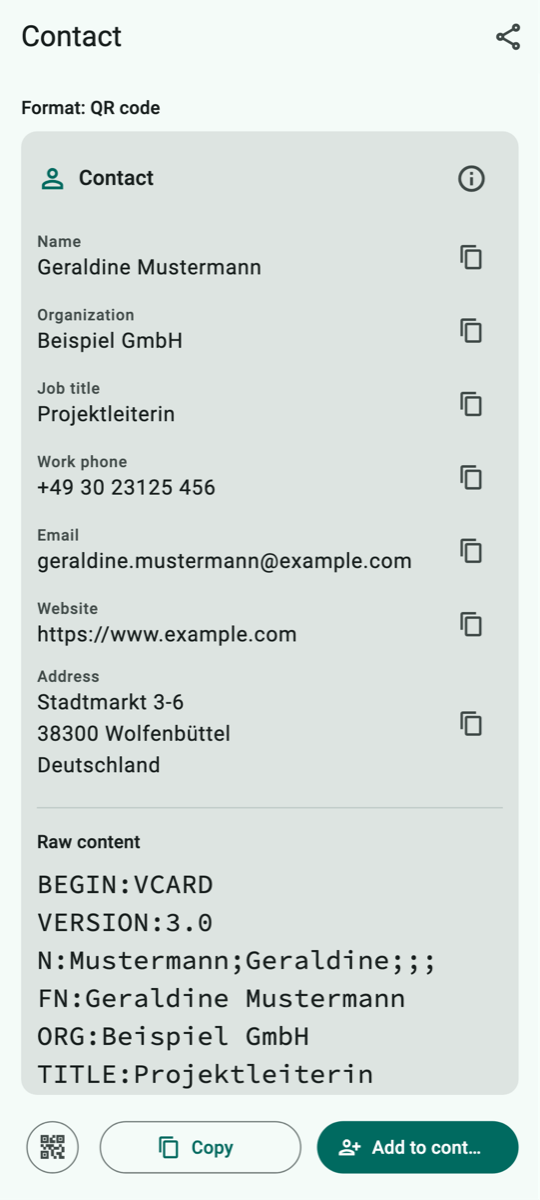
Geraldine Mustermann, project manager at Beispiel GmbH, with phone, email, website and the address Stadtmarkt 3–6, 38300 Wolfenbüttel.
How QR Viewer shows it
How QR Viewer handles the code
Each detail is shown with a label in the data card and can be copied on its own.
What you can do with it
“Add to contacts…” hands the business card to your contacts app via the share menu. There you can check everything before saving.
Keep in mind: Only save contacts you really want to keep.
A.9 QR code with an event
Scan type: QR code or All codes · Devices: iPhone, iPad and Android
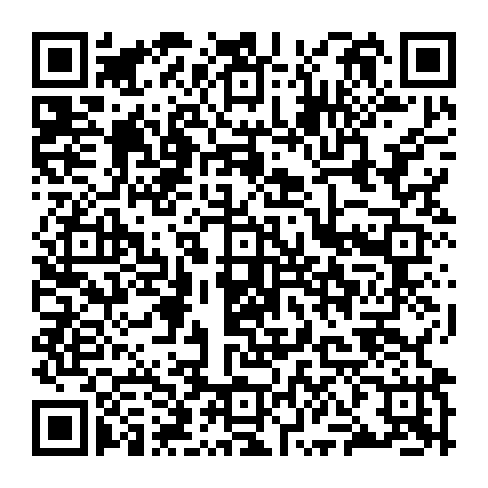
Example code to try out
What is it?
An event with title, start, end, location and description (technical term “iCalendar”).
Where will you see it?
On invitations, event posters, doctor's or public office appointments.
What is in the example?
“Stadtführung Wolfenbüttel” (guided town tour) on 7 November 2026 from 2 pm to 4 pm, meeting point in front of the main entrance of the town hall.
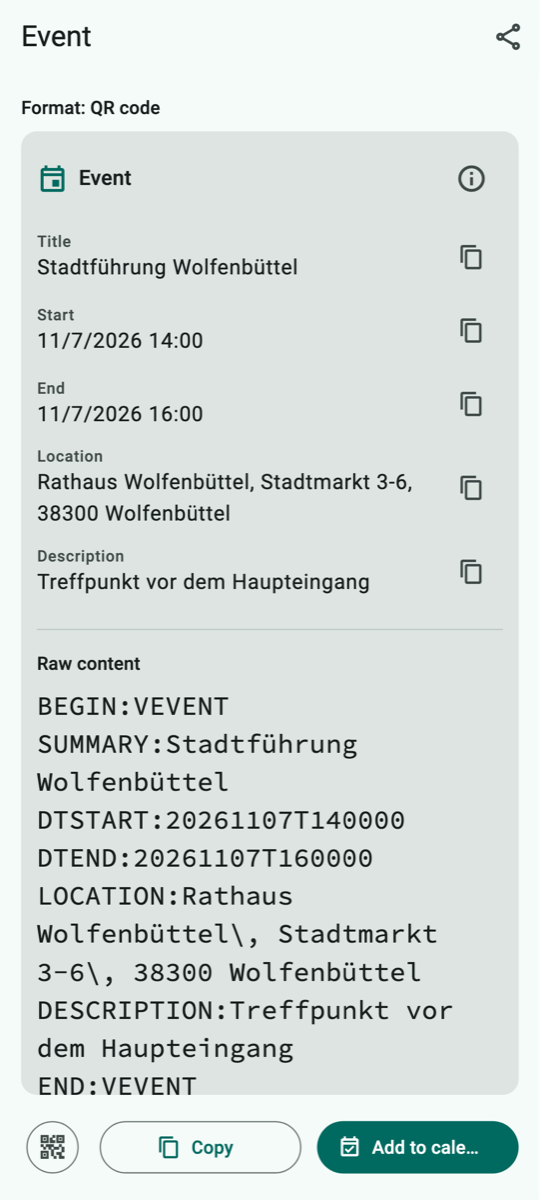
How QR Viewer shows it
How QR Viewer handles the code
The data card shows title, start, end, location and description – date and time in your usual format.
What you can do with it
“Add to calendar…” hands the event to your calendar app via the share menu.
Keep in mind: Check date and time before saving the event.
A.10 QR code with Wi-Fi access
Scan type: QR code or All codes · Devices: iPhone, iPad and Android
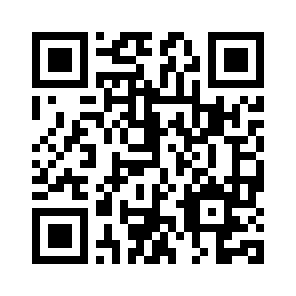
Example code to try out
What is it?
The credentials for a Wi-Fi network: network name, encryption and password.
Where will you see it?
In cafés, hotels, holiday flats, doctors' surgeries or on the back of your internet router.
What is in the example?
Network “Gaeste-WLAN” (guest Wi-Fi), encryption WPA, password “Sommer-2026!”.
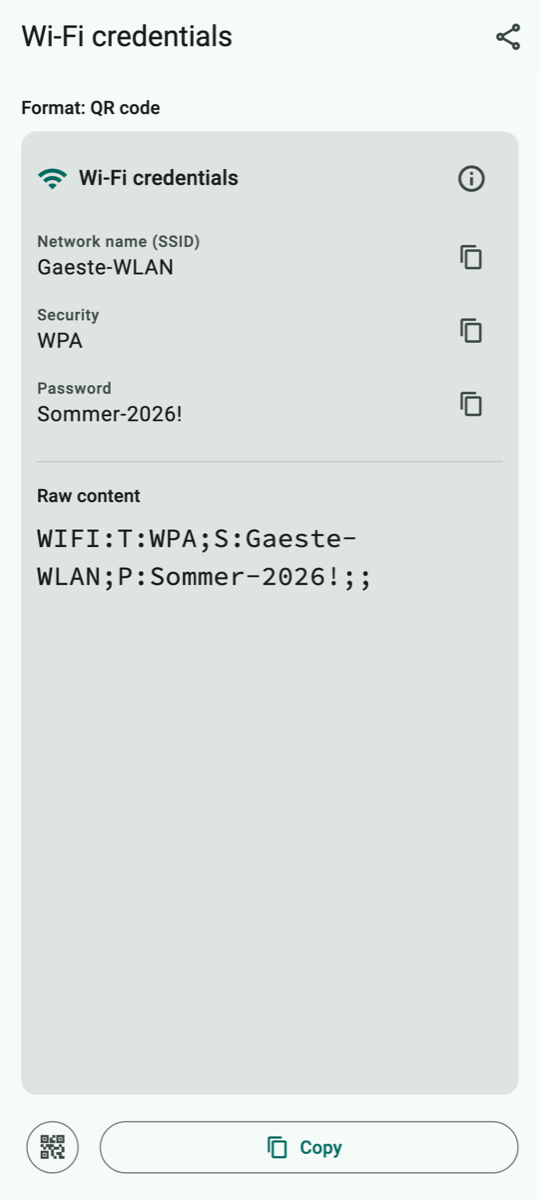
How QR Viewer shows it
How QR Viewer handles the code
The data card shows network name, password and encryption. You can copy the password on its own and paste it in the Wi-Fi settings.
What you can do with it
Copy the password, then select the network in your device settings and paste the password.
Keep in mind: Anyone who sees this code can use the network. The code stays in the history until you delete it – delete it when you no longer need it.
A.11 QR code with a bank transfer (GiroCode)
Scan type: QR code or All codes · Devices: iPhone, iPad and Android
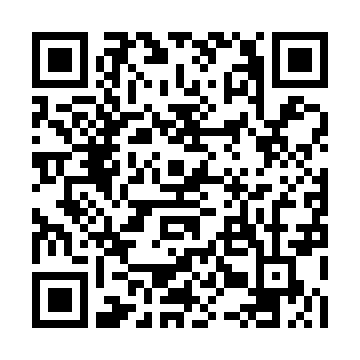
Example code to try out
What is it?
A GiroCode (also EPC QR code) contains everything needed for a SEPA bank transfer: recipient, IBAN, BIC, amount and reference.
Where will you see it?
On invoices, donation appeals, reminders or membership fee requests – common in Germany, Austria and other European countries.
What is in the example?
€12.50 to “Muster-Verein e.V.” (a sample club), IBAN DE02 1203 0000 0000 2020 51, reference “Mitgliedsbeitrag 2026” (membership fee 2026).
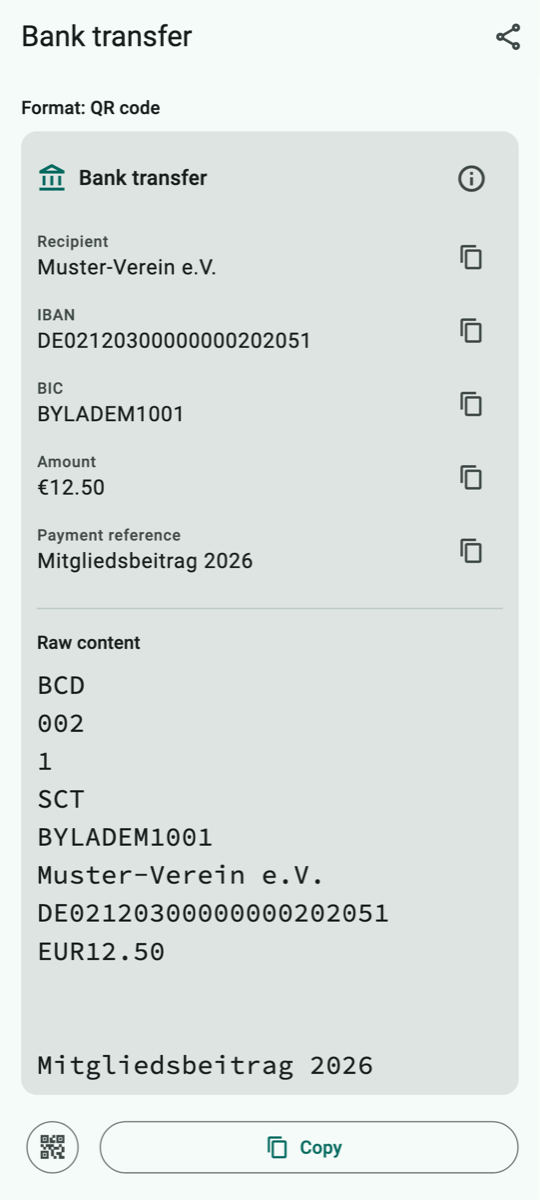
How QR Viewer shows it
How QR Viewer handles the code
The data card shows recipient, IBAN, BIC, amount (with the euro sign) and reference. Each detail can be copied on its own.
What you can do with it
QR Viewer does not transfer money. You can copy the details or scan the code directly with the scan function of your banking app.
Keep in mind: Check every detail before paying, especially recipient and IBAN. Fraudsters send fake invoices with their own GiroCode.
A.12 QR code with a one-time password (2FA)
Scan type: QR code or All codes · Devices: iPhone, iPad and Android
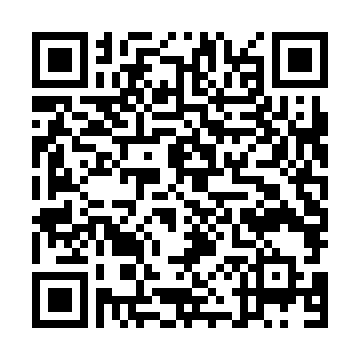
Example code to try out
What is it?
A secret key for two-step sign-in (2FA). An authenticator app uses it to create a new six-digit sign-in code every 30 seconds.
Where will you see it?
When setting up two-factor sign-in for online services, banks, email providers or company accounts.
What is in the example?
A key for the “Beispielkonto” (sample account) of geraldine.mustermann@example.com.
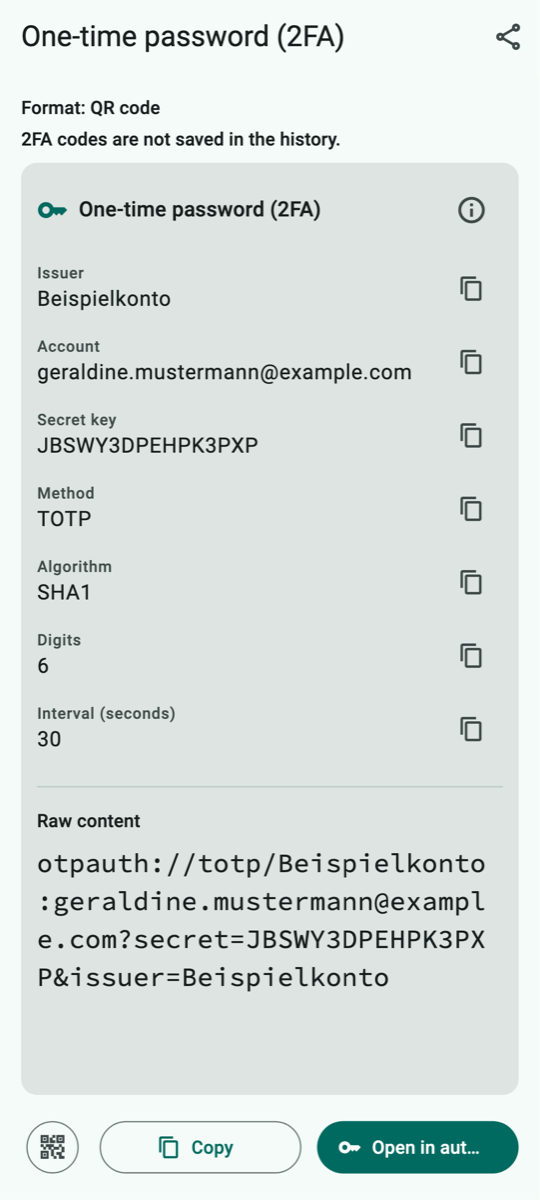
How QR Viewer shows it
How QR Viewer handles the code
The data card shows provider, account, key and the technical settings. At the top it says “2FA codes are not saved in the history.”
What you can do with it
“Open in authenticator…” hands the key to your authenticator app after a confirmation.
Keep in mind: This key is as secret as a password. Do not show it to anyone and do not take screenshots of it. That is why QR Viewer never stores it in the history.
A.13 QR code with JSON data
Scan type: QR code or All codes · Devices: iPhone, iPad and Android
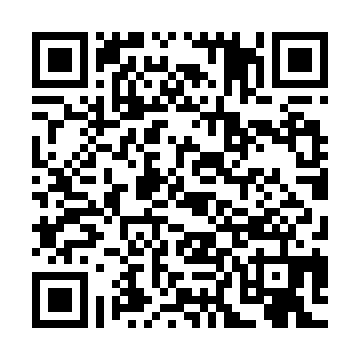
Example code to try out
What is it?
JSON is a format computer programs use to exchange data: names and values in curly and square brackets.
Where will you see it?
On device labels, in warehouses, on admission tickets or in technical instructions.
What is in the example?
Details of the Wolfenbüttel public library with opening days (Tue, Thu, Sat).
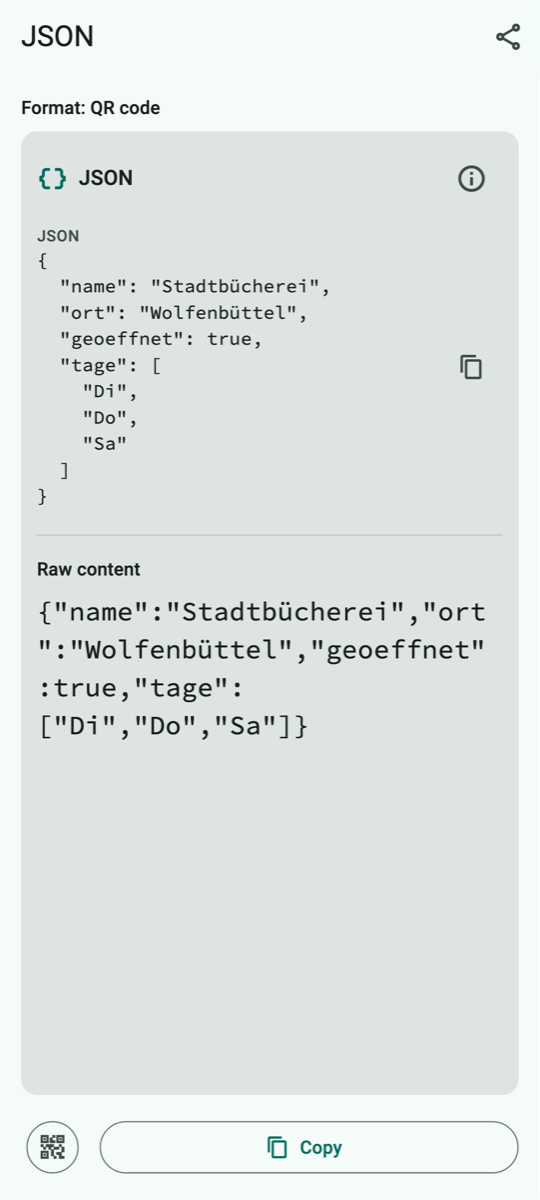
How QR Viewer shows it
How QR Viewer handles the code
QR Viewer indents the data neatly so you can read it. Nothing else happens with the data.
What you can do with it
Copy or share.
Keep in mind: Nothing special – JSON cannot trigger anything.
A.14 QR code of a smart home device (Matter)
Scan type: QR code or All codes · Devices: iPhone, iPad and Android
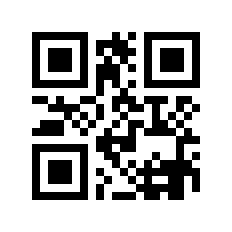
Example code to try out
What is it?
Matter is a common standard for smart home devices such as lights, plugs, thermostats or sensors – supported by Apple, Google, Amazon, Samsung and many manufacturers. The QR code always starts with “MT:” and contains everything a smart home app needs to set up the device.
Where will you see it?
On the device itself, on the packaging or on a small card in the manual of Matter-enabled smart home devices.
What is in the example?
The example code from the Matter specification: a test device (vendor ID 0xFFF1, reserved for testing) with the setup code 20202021, reachable via Bluetooth LE.
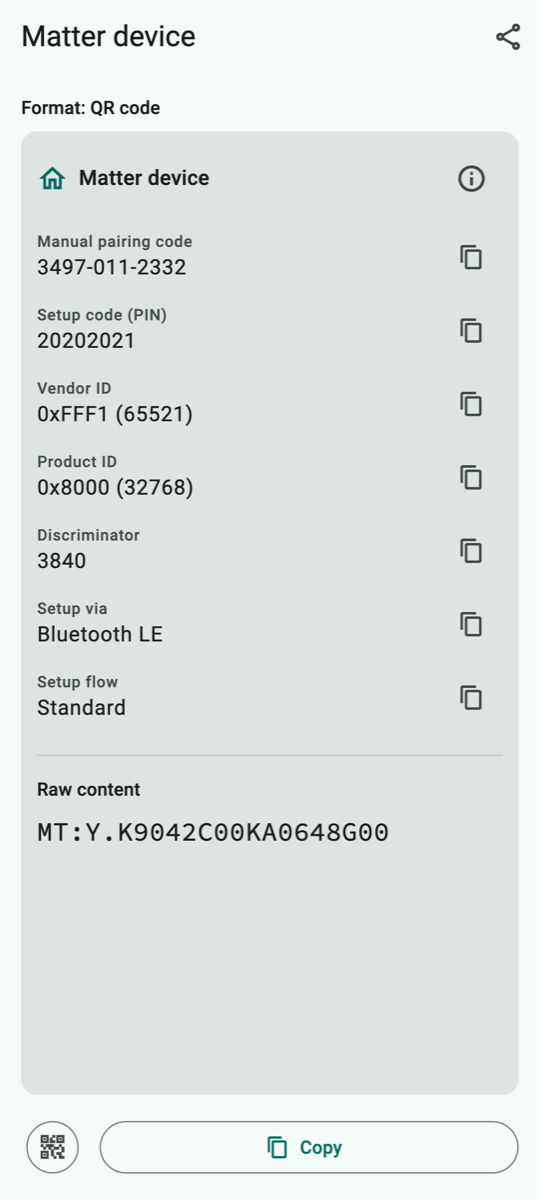
How QR Viewer shows it
How QR Viewer handles the code
The data card shows the manual pairing code (3497-011-2332), the setup code (PIN), vendor and product ID, the discriminator, which connection can be used to set up the device and whether you need to press a button first, for example.
What you can do with it
QR Viewer does not set up the device itself. Scan the code in your smart home app (e.g. Apple Home, Google Home) – or type in the manual pairing code there if scanning does not work. The copy icon next to the field lets you copy it.
Keep in mind: Anyone with this code can pair the device while it is in setup mode. Do not show it around, and do not stick the label where others can see it.
A.15 Micro QR code
Scan type: All codes · Devices: iPhone and iPad only
Example code to try out
What is it?
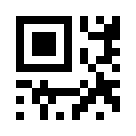
The Micro QR code is the little sister of the QR code: only one corner marker instead of three. It fits on very small surfaces but stores only a few characters.
Where will you see it?
On electronic components, circuit boards, small spare parts or medical products.
What is in the example?
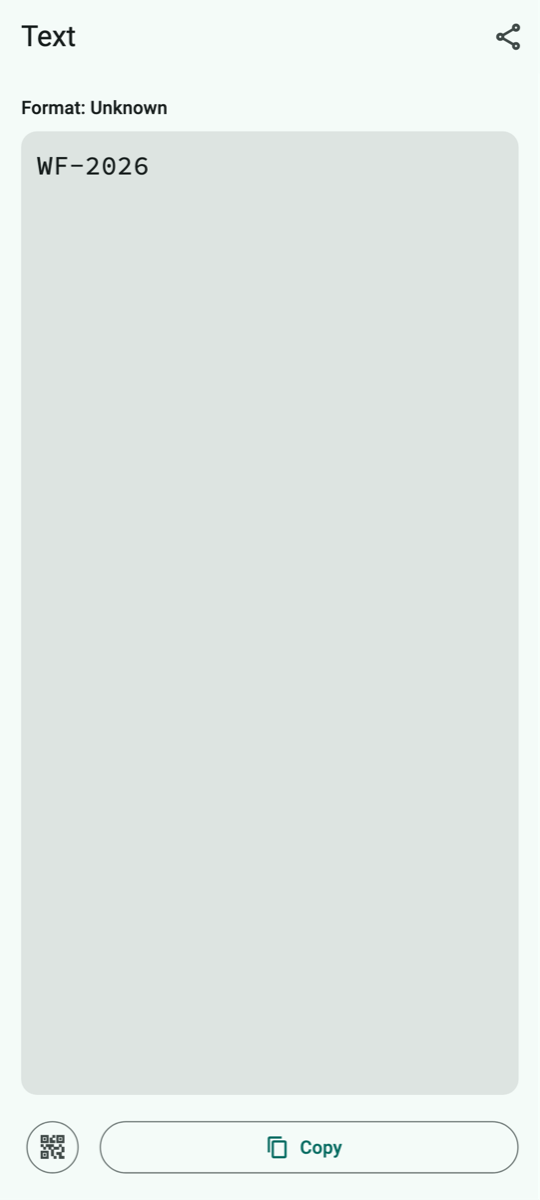
WF-2026
How QR Viewer shows it
How QR Viewer handles the code
The content is shown as text. For links, phone numbers etc. the same applies as for the normal QR code. The format, however, reads “Unknown”: the iPhone recognises the code, but the app is not told that it is a Micro QR code. This does not affect the content.
What you can do with it
Copy or share.
Keep in mind: Choose the scan type “All codes” – with “QR code”, a Micro QR code is not recognised. Android cannot read this code at all because Google's recognition does not support it.
A.16 EAN-13 – product number
Scan type: Barcode or All codes · Devices: iPhone, iPad and Android
Example code to try out
What is it?
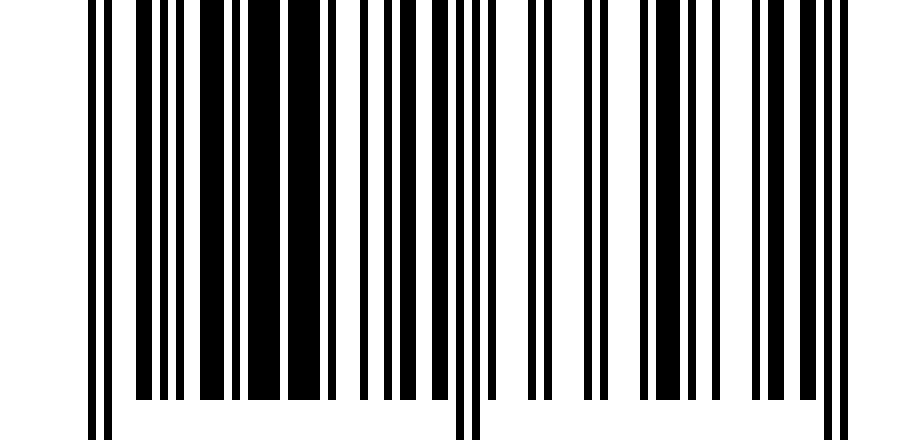
The EAN-13 is the barcode you know from almost every product in the supermarket. It contains a 13-digit item number (technical term GTIN). The last digit is a check digit that reveals reading errors.
Where will you see it?
On groceries, toiletries, electronics – it is scanned at the checkout.
What is in the example?
4006381333931 – an item number from Germany.
How QR Viewer shows it
How QR Viewer handles the code
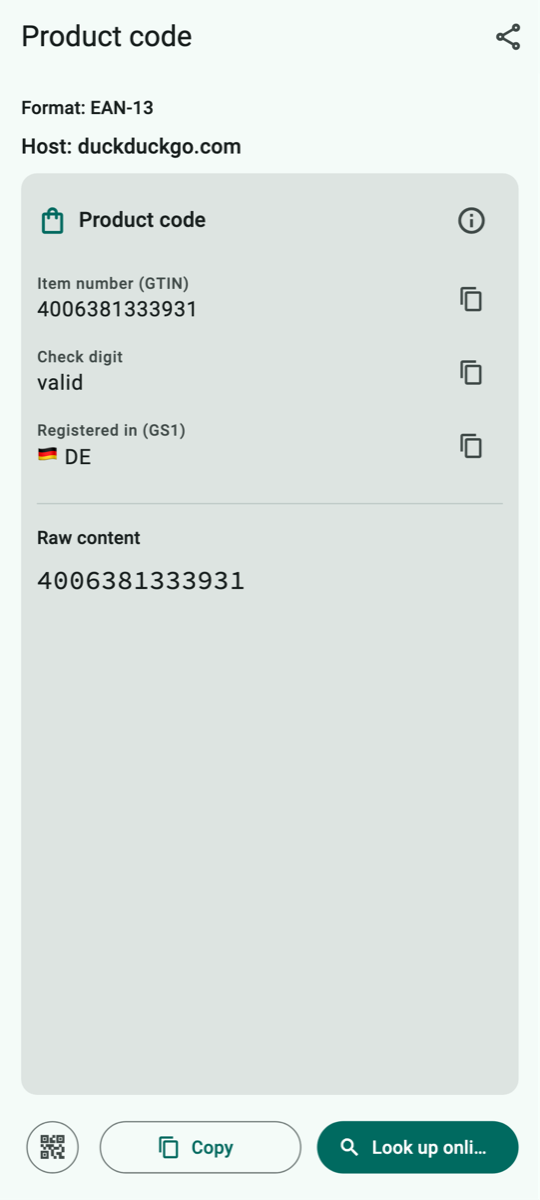
The data card shows the item number, whether the check digit is correct (“valid”) and in which country the number was registered (here: Germany). The number does not reveal the product name, the price or the ingredients – those are not in the code.
What you can do with it
“Look up online…” searches for the number with the DuckDuckGo search engine after a confirmation. Copying and sharing work too, of course.
Keep in mind: The country only shows where the number was registered, not necessarily where the product was made. When looking it up, DuckDuckGo learns what you are searching for.
A.17 EAN-13 – book number (ISBN)
Scan type: Barcode or All codes · Devices: iPhone, iPad and Android
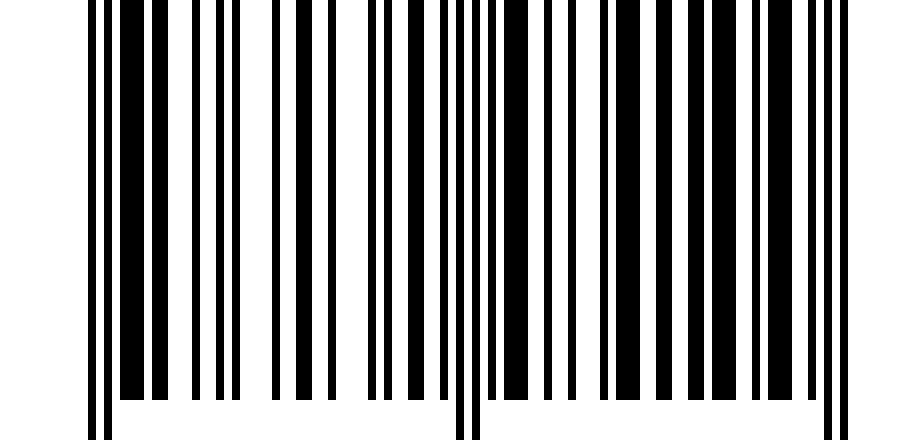
Example code to try out
What is it?
Books carry an EAN-13 starting with 978 or 979: this is the ISBN, the international book number. Magazines have a code starting with 977, the ISSN.
Where will you see it?
On the back of books, magazines and sheet music.
What is in the example?
978-3-16-148410-0 – a well-known example ISBN.
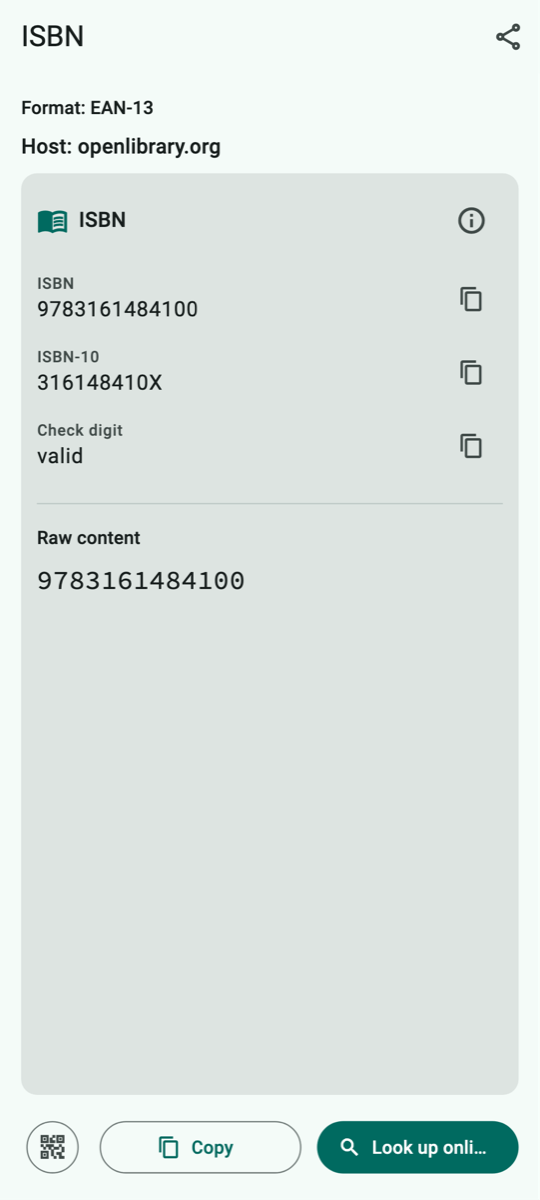
How QR Viewer shows it
How QR Viewer handles the code
The data card shows the ISBN, the older ten-digit form (ISBN-10) and whether the check digit is correct. Title and author are not in the code.
What you can do with it
“Look up online…” searches for the book on Open Library, a free online book catalogue, after a confirmation.
Keep in mind: Open Library learns which book you are looking for.
A.18 EAN-8 – short product number
Scan type: Barcode or All codes · Devices: iPhone, iPad and Android
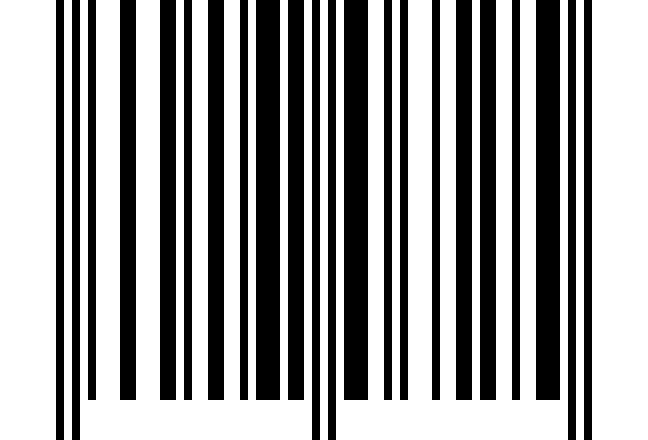
Example code to try out
What is it?
The EAN-8 is the short form of the EAN-13 with only 8 digits – for products with little space.
Where will you see it?
On small packages such as chewing gum, lip balm or spices.
What is in the example?
40170725
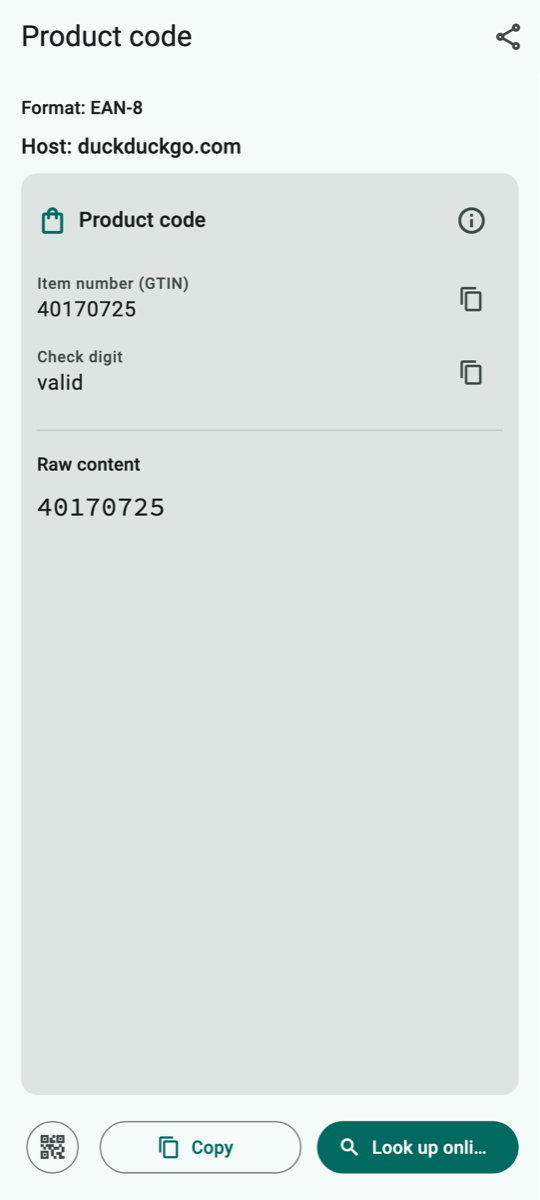
How QR Viewer shows it
How QR Viewer handles the code
As with the EAN-13: item number, check digit and country of registration.
What you can do with it
Look up online (DuckDuckGo), copy, share.
Keep in mind: As with the EAN-13.
A.19 UPC-A – American product number
Scan type: Barcode or All codes · Devices: iPhone, iPad and Android
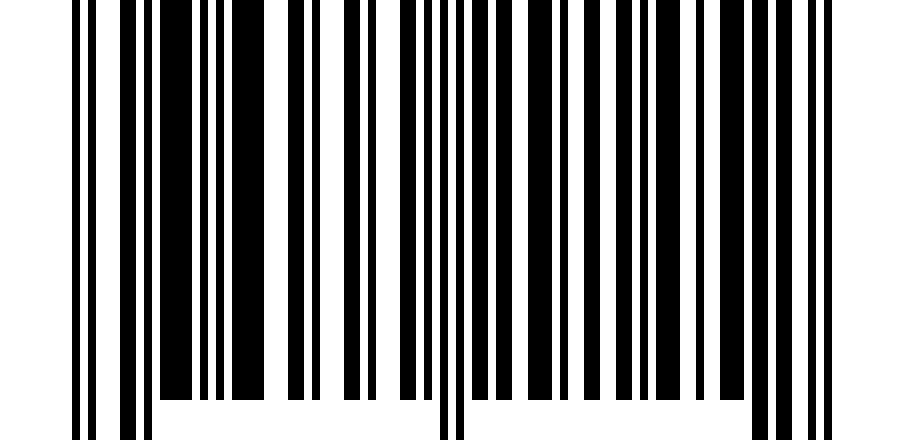
Example code to try out
What is it?
The UPC-A is the American counterpart of the EAN-13 with 12 digits. It is mainly used in the USA and Canada.
Where will you see it?
On products from North America, e.g. imported groceries, games or electronics.
What is in the example?
036000291452
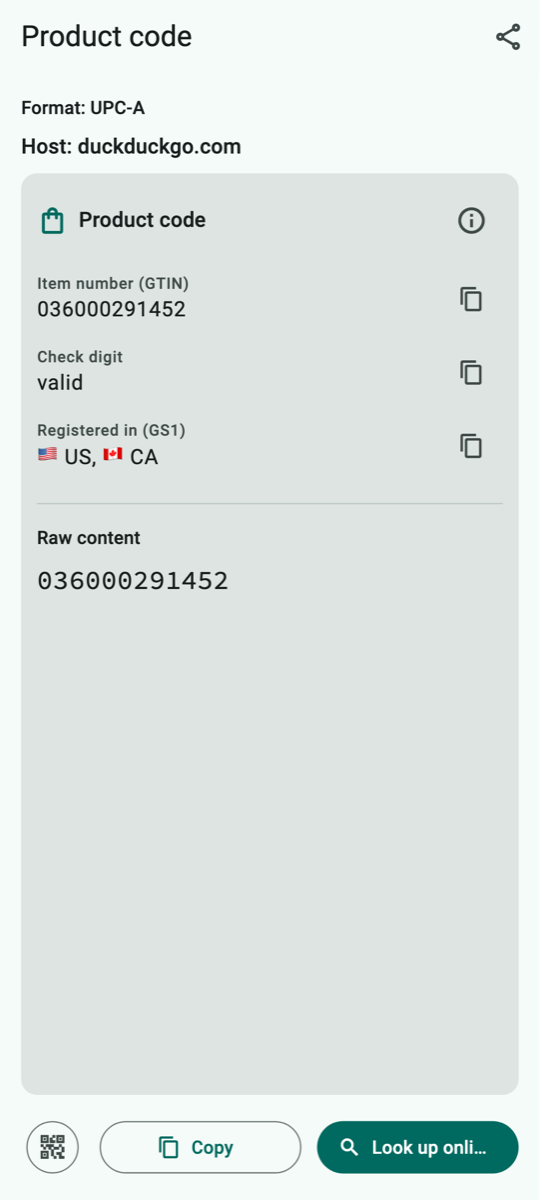
How QR Viewer shows it
How QR Viewer handles the code
The data card shows the item number, whether the check digit is correct, and the country of registration (USA and Canada). On iPhone and iPad the device reports this code as an EAN-13 with a leading 0 – the content is the same.
What you can do with it
Look up online (DuckDuckGo), copy, share.
Keep in mind: As with the EAN-13.
A.20 UPC-E – short American product number
Scan type: Barcode or All codes · Devices: iPhone, iPad and Android
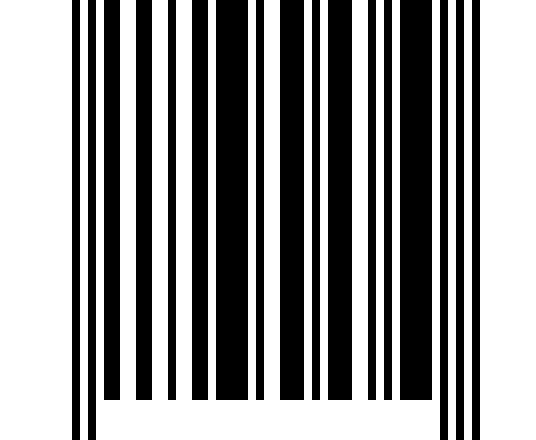
Example code to try out
What is it?
The UPC-E is a shortened form of the UPC-A for small packages. Left-out zeros are added back when reading.
Where will you see it?
On small products from North America, e.g. drink cans.
What is in the example?
01234565 – written out 012345000065.
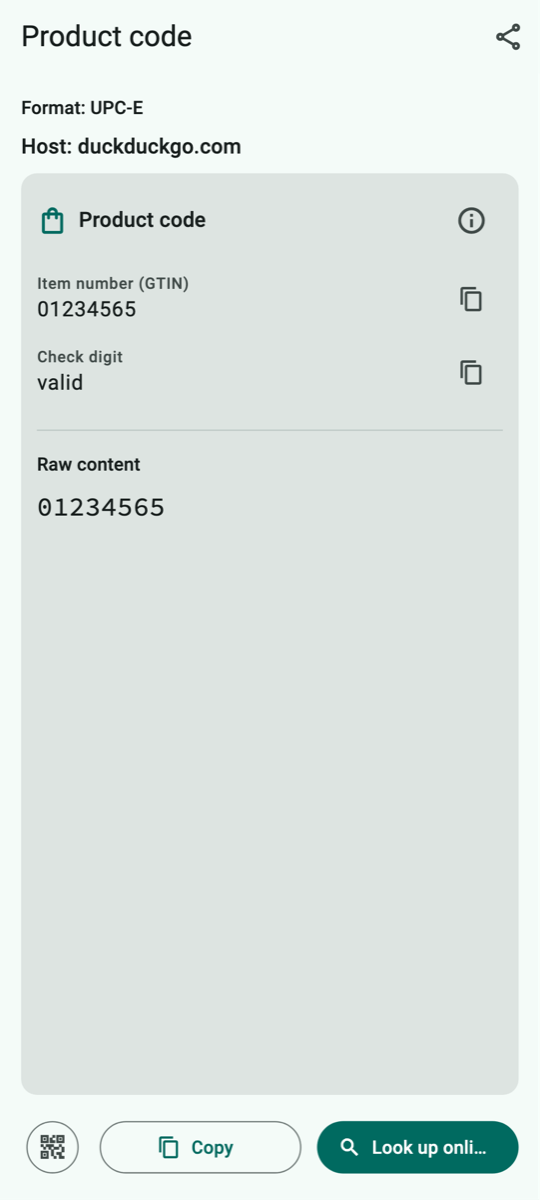
How QR Viewer shows it
How QR Viewer handles the code
The data card shows the number and whether the check digit is correct. For this, QR Viewer internally adds the left-out zeros.
What you can do with it
Look up online (DuckDuckGo), copy, share.
Keep in mind: As with the EAN-13.
A.21 ITF-14 – shipping carton
Scan type: Barcode or All codes · Devices: iPhone, iPad and Android
Example code to try out
What is it?
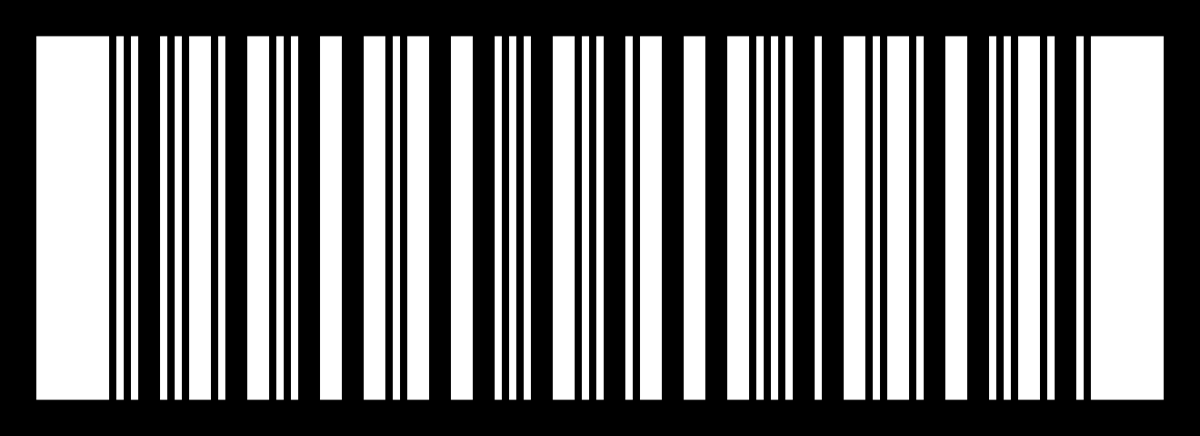
The ITF-14 does not identify a single product but a carton or pallet with several items. It has 14 digits and often a thick frame.
Where will you see it?
On outer cartons and transport packaging in warehouses or drinks stores.
What is in the example?
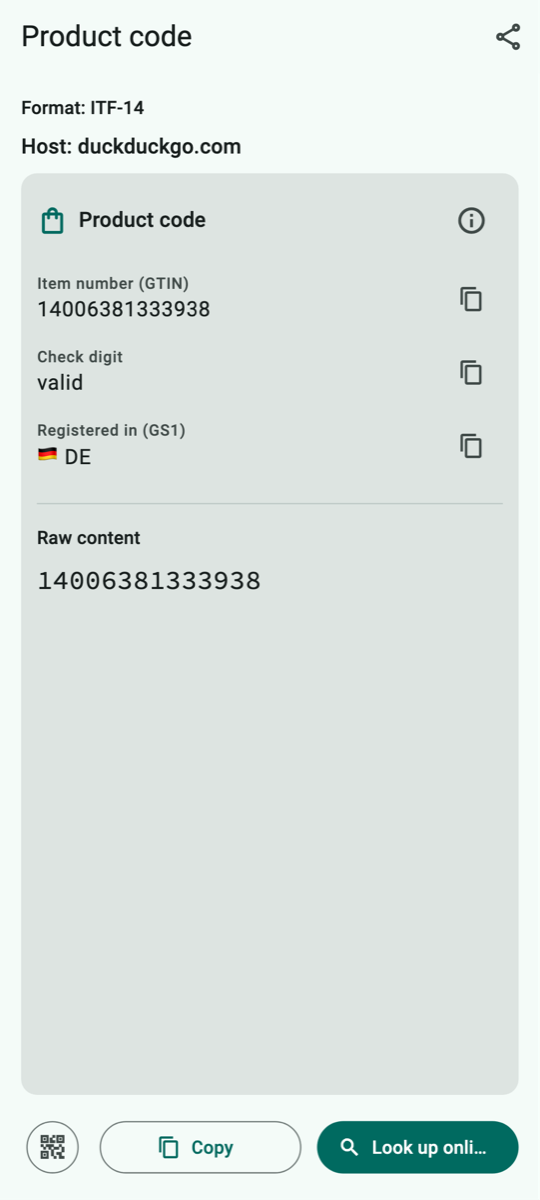
14006381333938 – a carton containing the product from the EAN-13 example.
How QR Viewer shows it
How QR Viewer handles the code
The data card shows the 14-digit item number, the check digit and the country of registration.
What you can do with it
Look up online (DuckDuckGo), copy, share.
Keep in mind: Nothing special.
A.22 Code 128
Scan type: Barcode or All codes · Devices: iPhone, iPad and Android
Example code to try out
What is it?
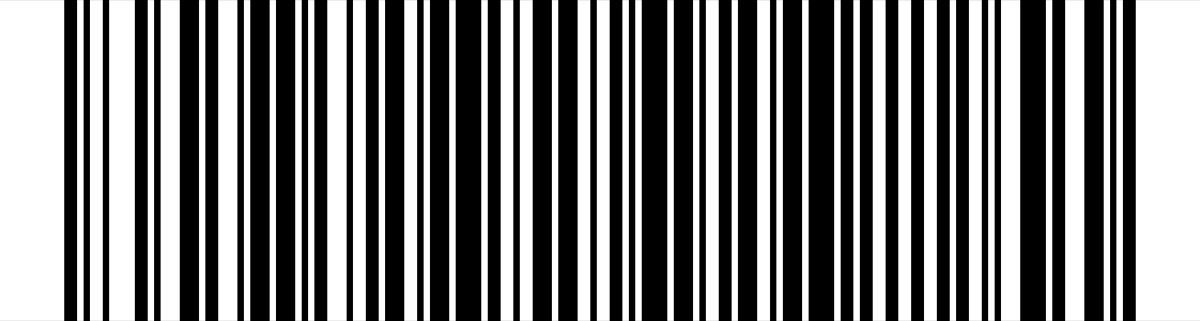
Code 128 is a very common barcode that can store letters, digits and symbols – compact and reliable.
Where will you see it?
On parcel labels, delivery notes, warehouse shelves, library books and prescriptions.
What is in the example?
QRV-2026-0001 – for example a delivery note number.
How QR Viewer shows it
How QR Viewer handles the code
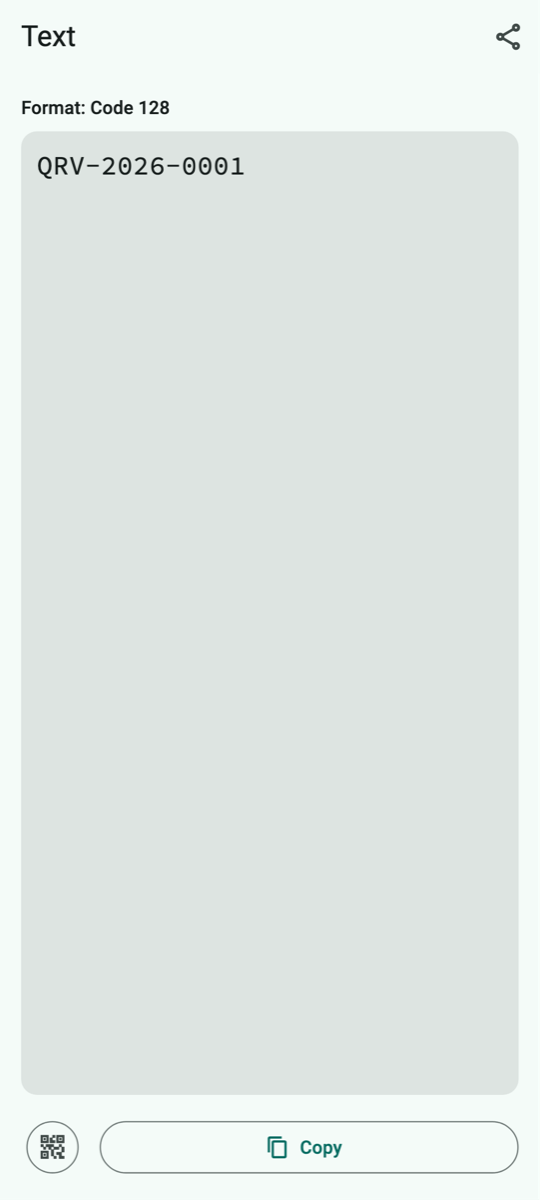
The content is shown as text.
What you can do with it
Copy or share, e.g. to pass on a shipment or order number.
Keep in mind: Nothing special.
A.23 Code 39
Scan type: Barcode or All codes · Devices: iPhone, iPad and Android
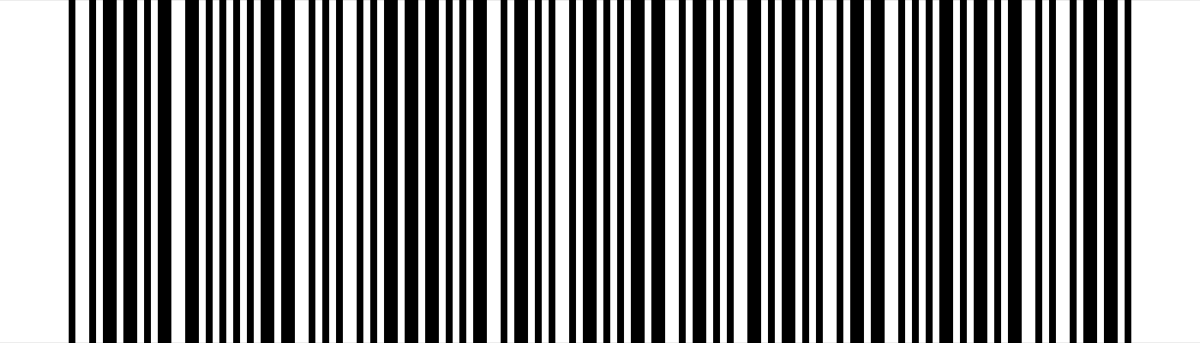
Example code to try out
What is it?
Code 39 is one of the oldest barcodes. It can store capital letters, digits and a few symbols, but needs a lot of space for that.
Where will you see it?
On staff ID cards, inventory stickers, in industry, public authorities and healthcare.
What is in the example?
WF-RATHAUS – for example an inventory sticker.
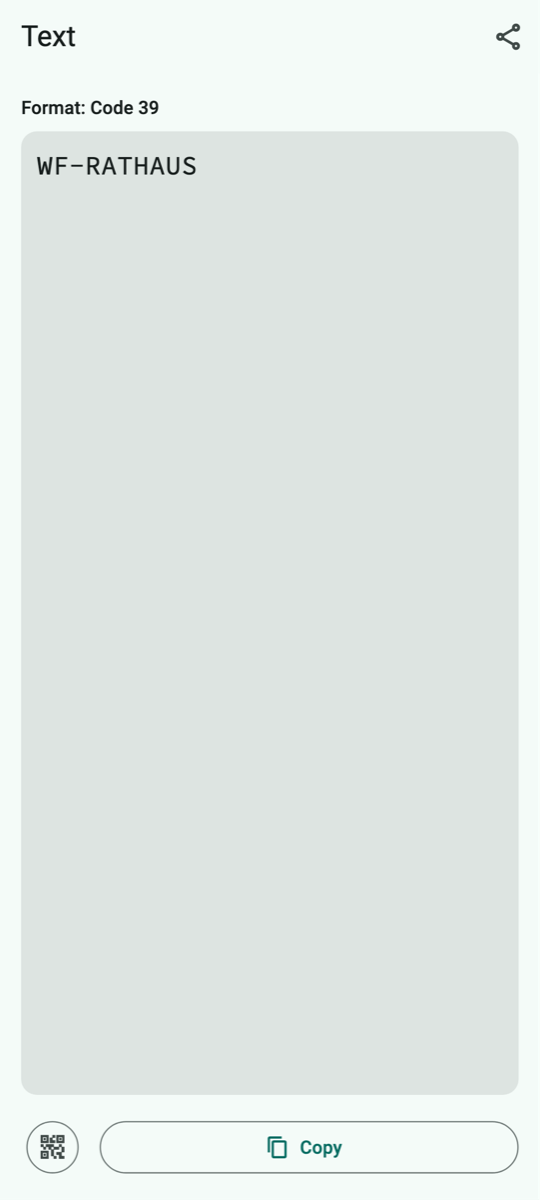
How QR Viewer shows it
How QR Viewer handles the code
The content is shown as text.
What you can do with it
Copy or share.
Keep in mind: Nothing special.
A.24 Code 93
Scan type: Barcode or All codes · Devices: iPhone, iPad and Android
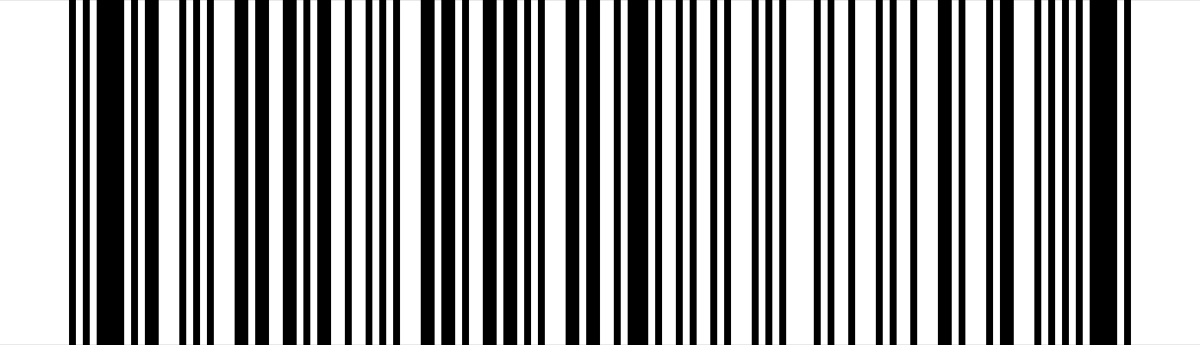
Example code to try out
What is it?
Code 93 is a more compact development of Code 39 with a built-in error check.
Where will you see it?
In logistics, warehouse management and on Canada Post labels.
What is in the example?
INVENTAR 4711 (inventory 4711)
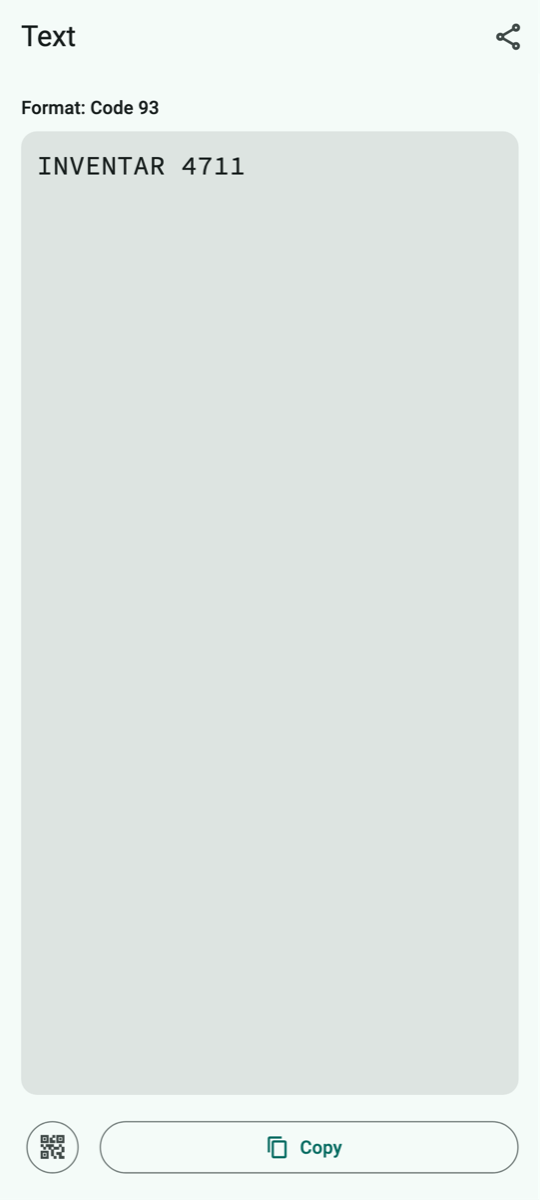
How QR Viewer shows it
How QR Viewer handles the code
The content is shown as text.
What you can do with it
Copy or share.
Keep in mind: Nothing special.
A.25 Codabar
Scan type: Barcode or All codes · Devices: iPhone, iPad and Android
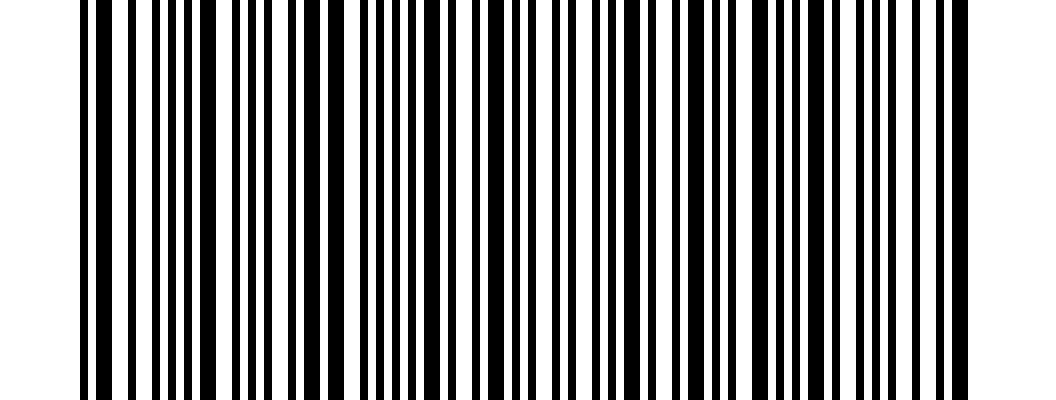
Example code to try out
What is it?
Codabar is a simple, old barcode for digits. A letter (A to D) at the beginning and end serves as start and stop character.
Where will you see it?
On library cards, blood bags, laboratory samples and consignment notes.
What is in the example?
A123456789B – for example a card number.
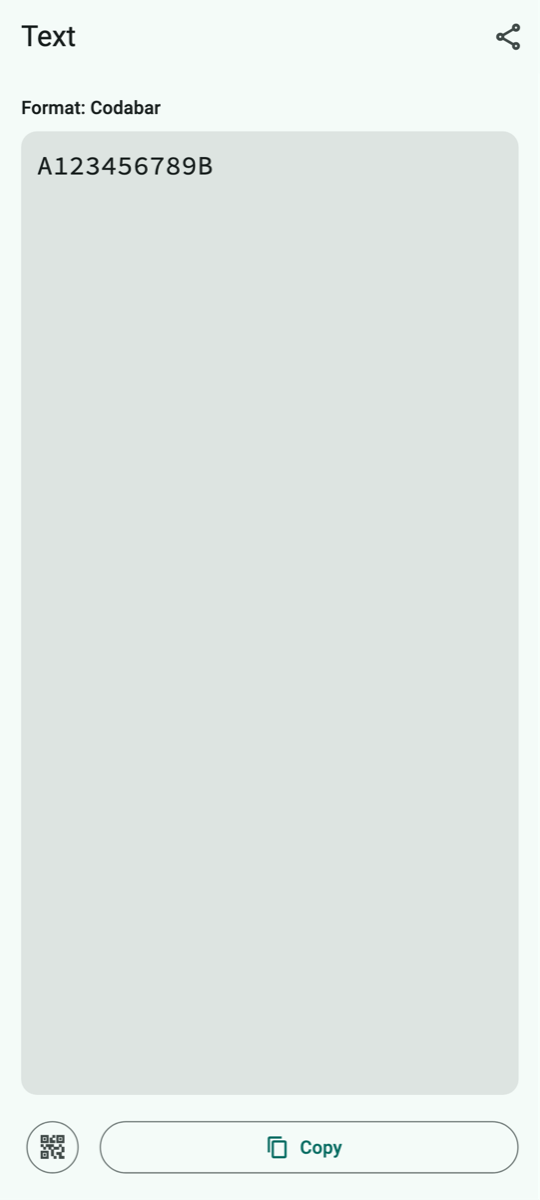
How QR Viewer shows it
How QR Viewer handles the code
The content is shown as text, including start and stop characters.
What you can do with it
Copy or share.
Keep in mind: Nothing special.
A.26 ITF (Interleaved 2 of 5)
Scan type: All codes · Devices: iPhone, iPad and Android
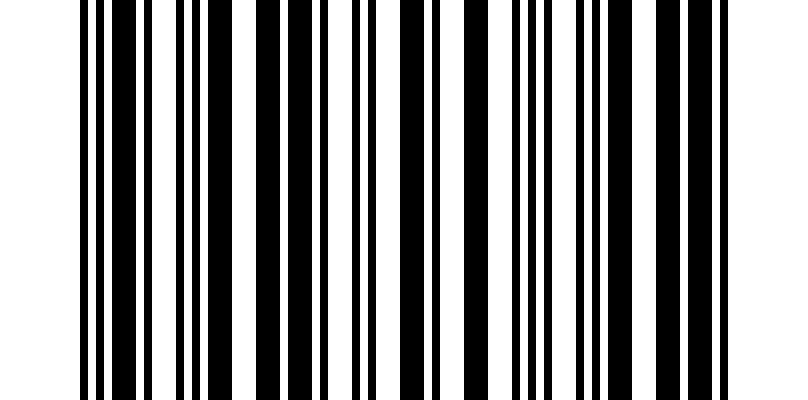
Example code to try out
What is it?
ITF stores digits in interleaved pairs, which makes it very compact. The ITF-14 on shipping cartons is a fixed form of it; the general ITF can contain any number of digit pairs.
Where will you see it?
In warehouses, on pallets, cartons and in industry.
What is in the example?
12345678
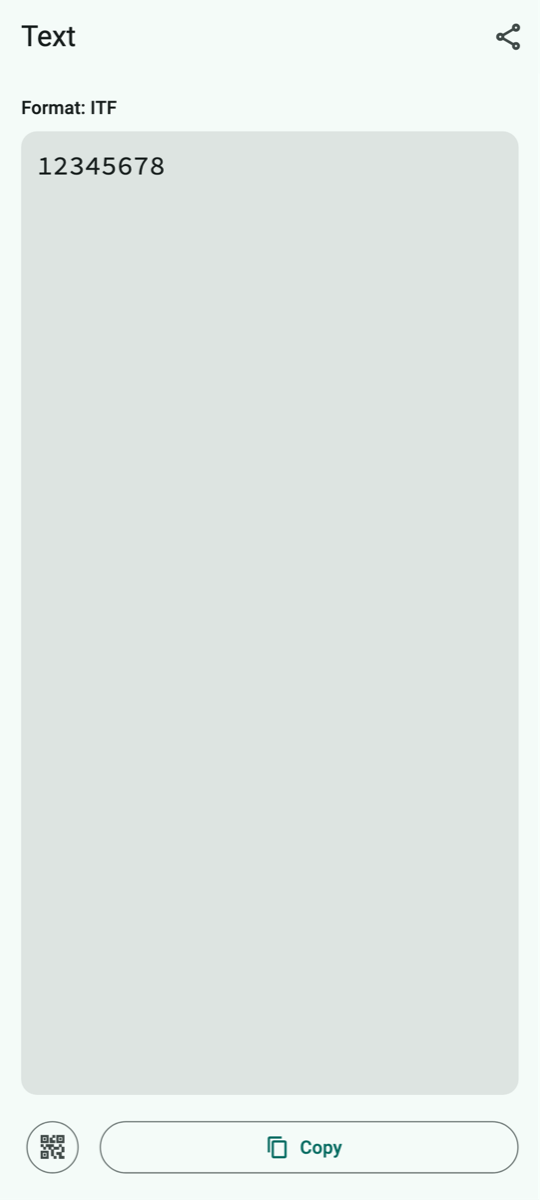
How QR Viewer shows it
How QR Viewer handles the code
The content is shown as text. QR Viewer reads this general form only with the scan type “All codes”.
What you can do with it
Copy or share.
Keep in mind: Nothing special.
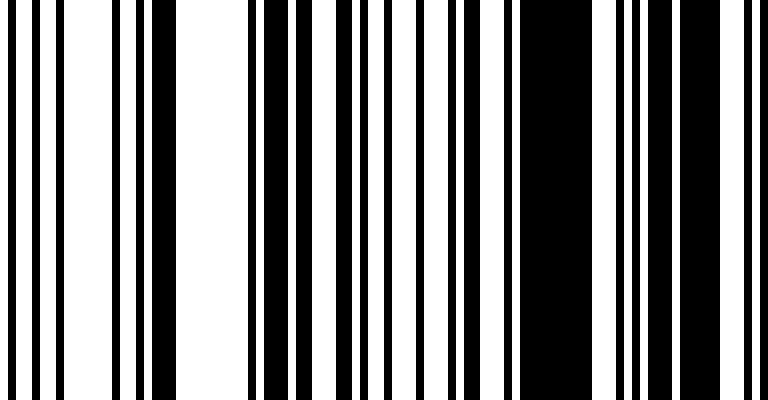
A.27 GS1 DataBar
Scan type: All codes · Devices: iPhone and iPad only
Example code to try out
What is it?
GS1 DataBar is a narrow barcode for item numbers that can also hold extra details such as weight or best-before date.
Where will you see it?
On fruit and vegetables (stickers), fresh meat, cheese and coupons.
What is in the example?
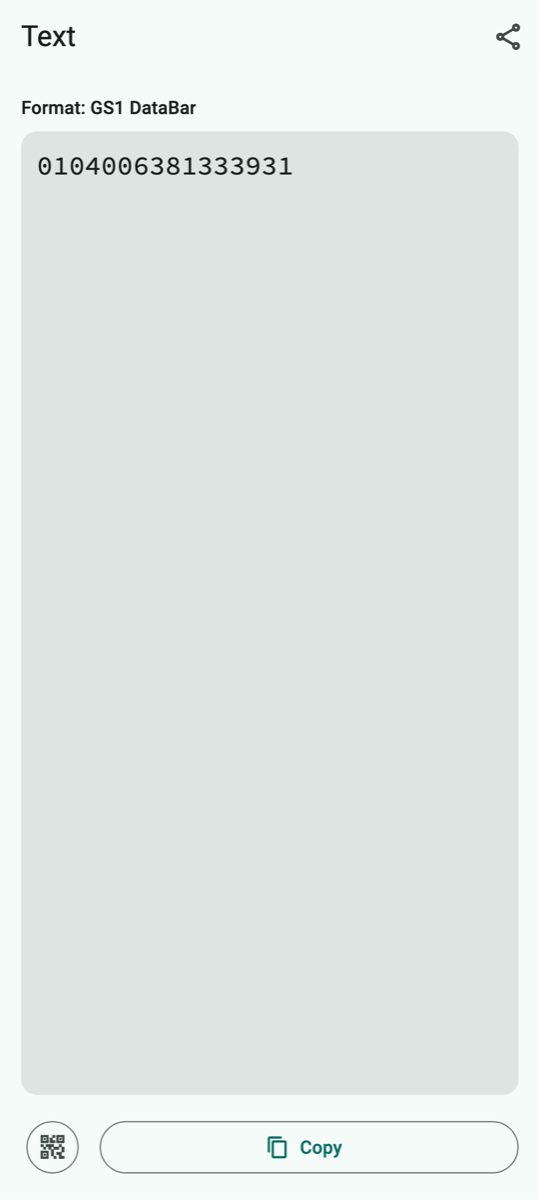
(01)04006381333931 – the “(01)” means: an item number follows.
How QR Viewer shows it
How QR Viewer handles the code
The content is shown as text.
What you can do with it
Copy or share.
Keep in mind: Android cannot read this code because Google's recognition does not support it.
A.28 Data Matrix – Deutsche Post stamp
Scan type: Data Matrix or All codes · Devices: iPhone, iPad and Android
Example code to try out
What is it?
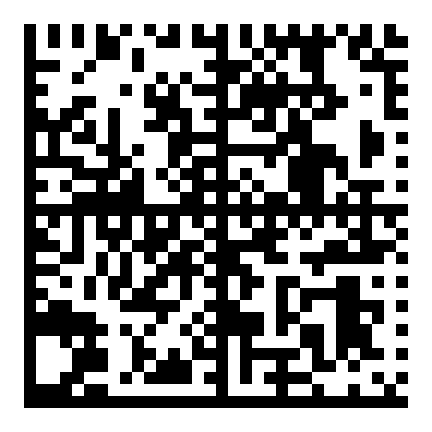
Data Matrix is a small square or rectangular code made of dots with a solid border on two sides. It stores a lot in little space. Deutsche Post, the German postal service, prints it on postage stamps and online stamps (“Matrixcode”).
Where will you see it?
On German postage stamps and online stamps, parcel labels, medicine packs and electronic components.
What is in the example?
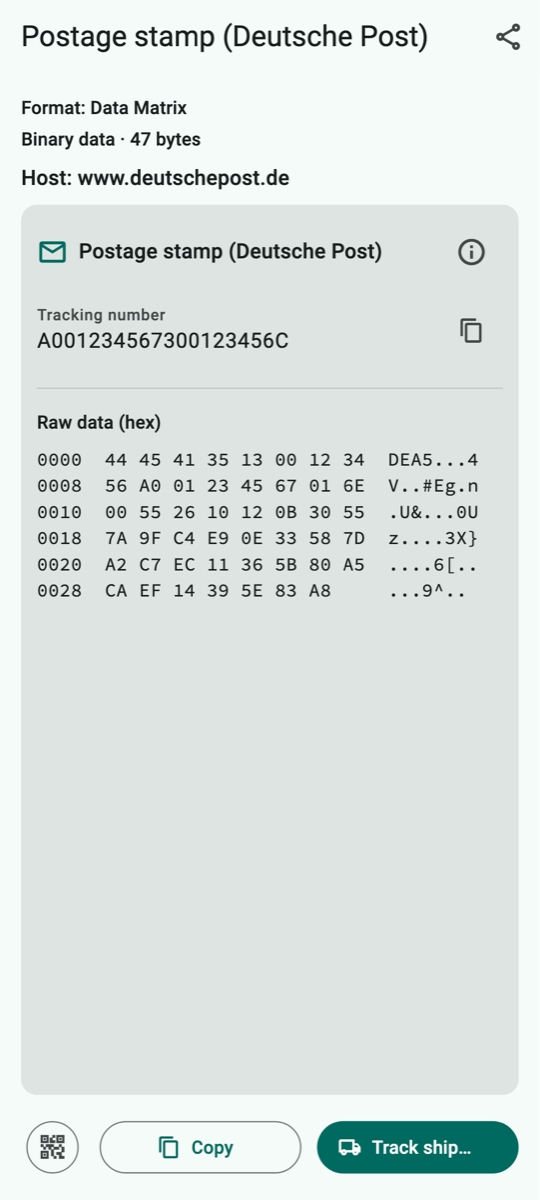
A recreated stamp code with the made-up tracking number A001234567300123456C.
How QR Viewer shows it
How QR Viewer handles the code
QR Viewer recognizes the Deutsche Post code and calculates the tracking number from it. Below it the raw data is shown as columns of numbers. Other Data Matrix codes with text are handled like QR codes.
What you can do with it
“Track shipment…” opens Deutsche Post shipment tracking after a confirmation. (Of course it will not find the example number.)
Keep in mind: When tracking, Deutsche Post learns the tracking number.
A.29 PDF417
Scan type: PDF417 or All codes · Devices: iPhone, iPad and Android
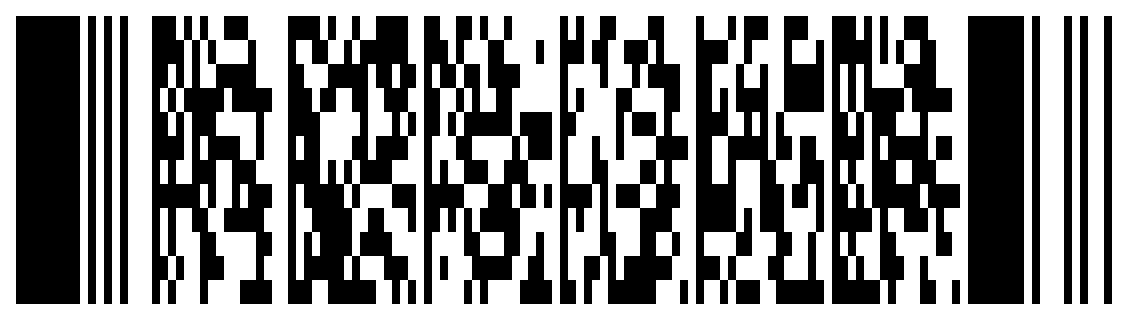
Example code to try out
What is it?
PDF417 is a wide, stacked code made of many small rows of bars. It stores a lot of text and copes well with damage.
Where will you see it?
On airline boarding passes, ID cards and driving licences (USA), shipping labels and freight documents.
What is in the example?
A made-up boarding pass for Geraldine Mustermann, flight from Hanover (HAJ) to Munich (MUC).
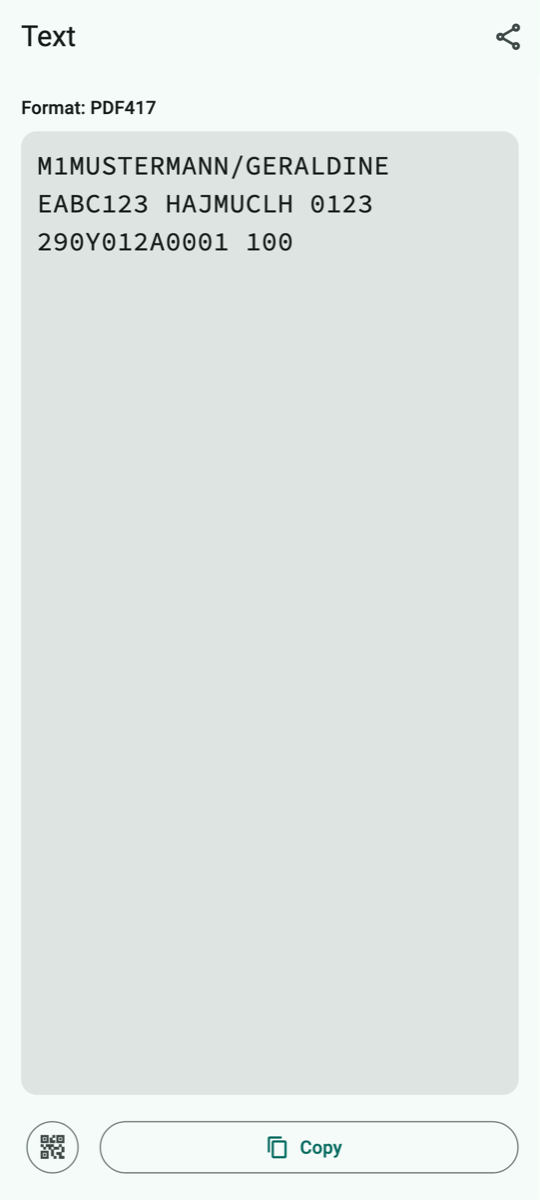
How QR Viewer shows it
How QR Viewer handles the code
The content is shown as text. The abbreviations on boarding passes are standardized; QR Viewer shows them as they are in the code.
What you can do with it
Copy or share.
Keep in mind: Boarding passes contain personal data such as your name and booking code. Do not post photos of them.
A.30 Aztec – Deutschlandticket (VDV eTicket)
Scan type: Aztec or All codes · Devices: iPhone, iPad and Android
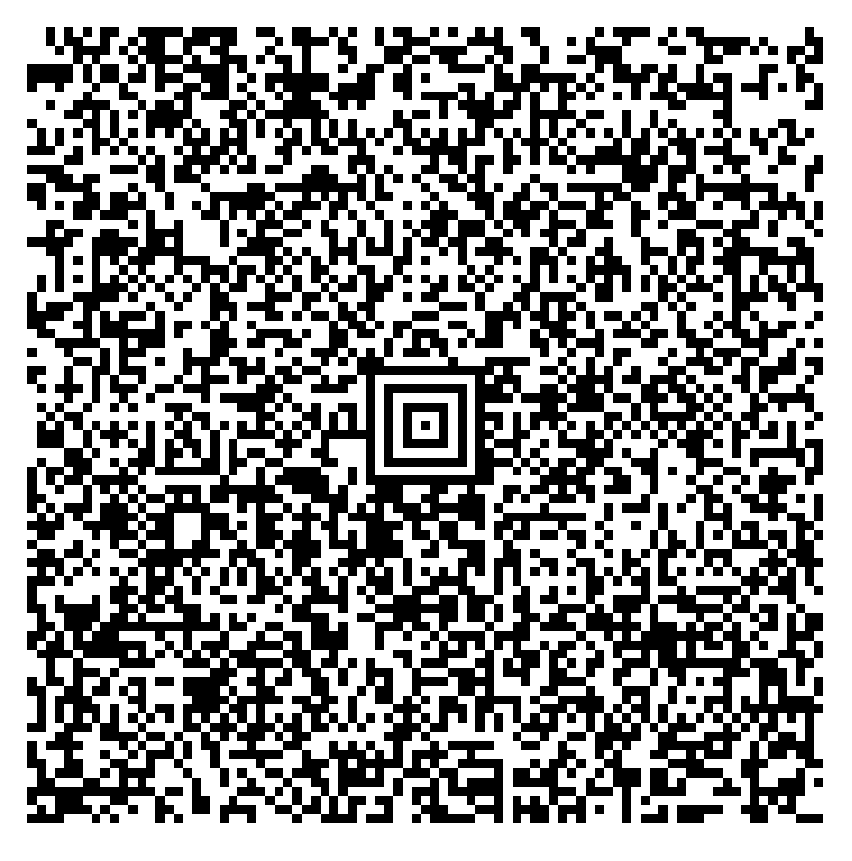
Example code to try out
What is it?
You recognize the Aztec code by the “bull's-eye” in the middle. It needs no white margin and is therefore popular for tickets on mobile phones. Bus and train tickets in Germany follow the VDV standard and are digitally signed so that nobody can forge them.
Where will you see it?
On the Deutschlandticket (Germany's nationwide public transport pass) and other bus and train tickets (VDV), train tickets of other countries and plane tickets.
What is in the example?
The official sample ticket “Deutschlandsemesterticket” (student ticket) of Geraldine Mustermann, valid from 1 September 2026 to 28 February 2027.
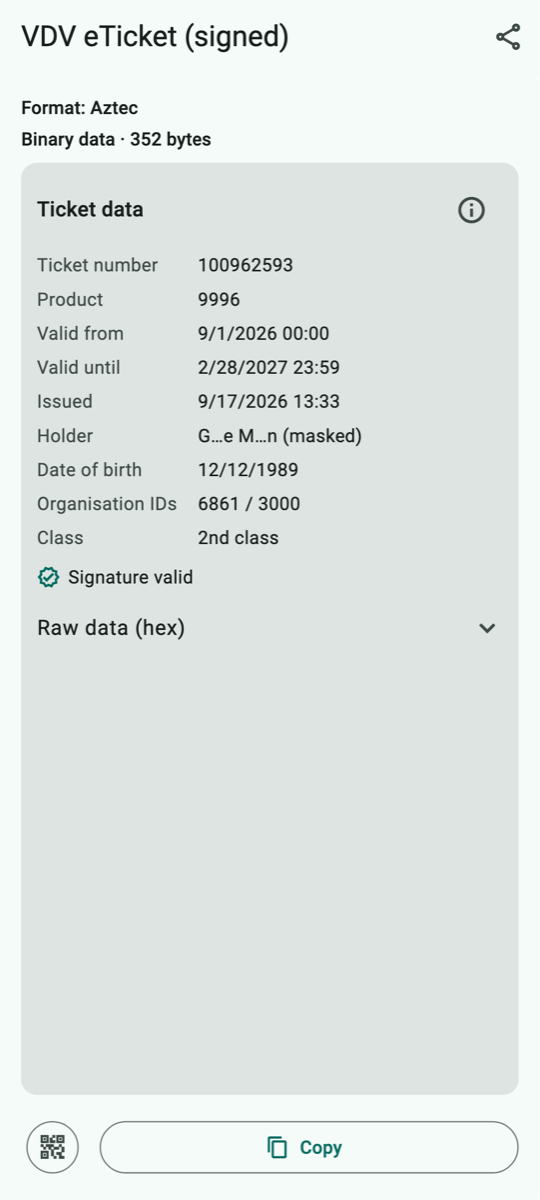
How QR Viewer shows it
How QR Viewer handles the code
QR Viewer decodes the ticket on your device and shows ticket number, product (as a number if the app does not know the fare by name), validity, time of issue, holder (shortened, as stored in the ticket), date of birth, class and whether the signature is valid. You can expand the raw data.
What you can do with it
See what is stored in your ticket. Copying passes on the raw data as a sequence of numbers.
Keep in mind: QR Viewer is not an inspection device: the app only shows what is in the ticket and does not replace a ticket check. Do not share screenshots of your ticket – they contain your name and date of birth.
A.31 Aztec – test ticket from an unknown issuer
Scan type: Aztec or All codes · Devices: iPhone, iPad and Android
Example code to try out
What is it?
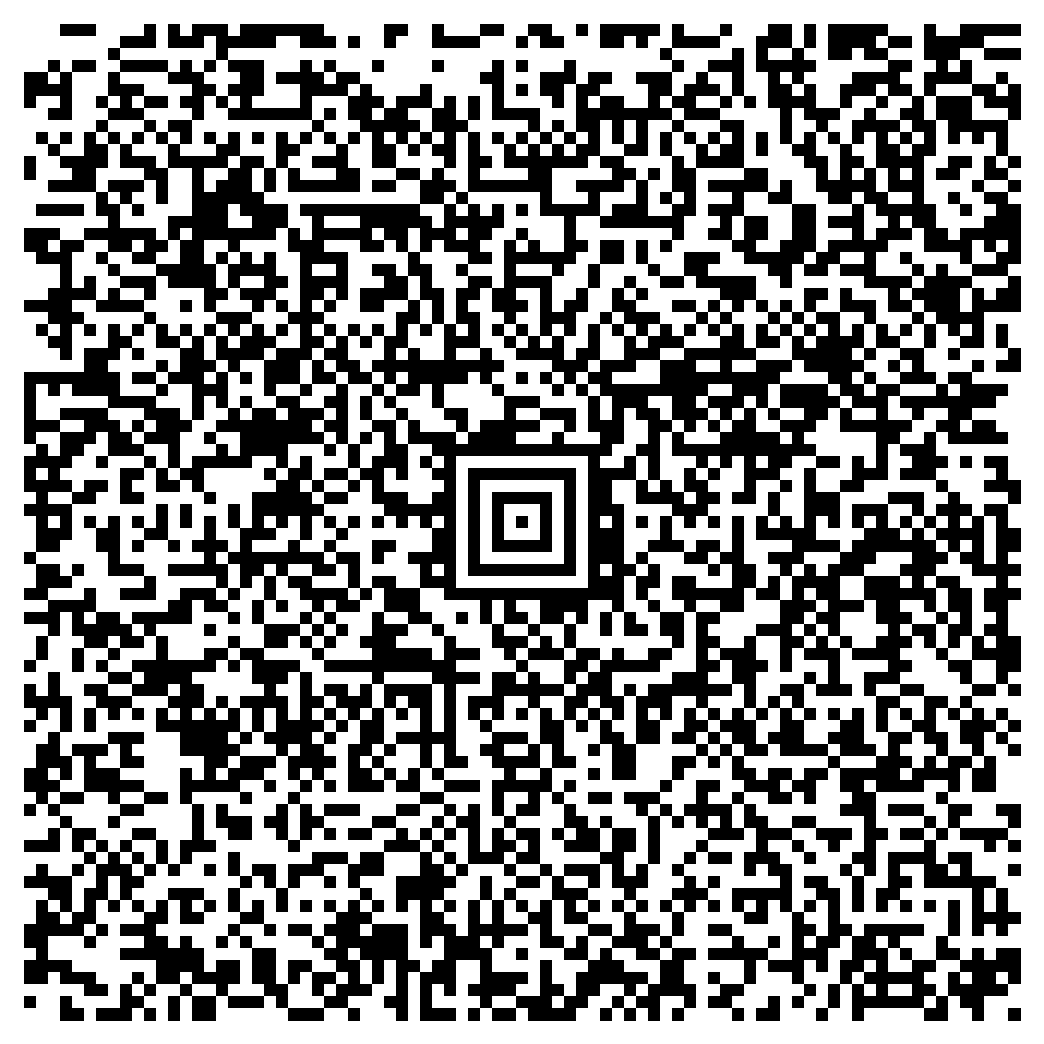
A ticket following the VDV standard, just like the Deutschlandticket on the previous page. This time, however, the name is stored in full in the ticket. The catch: the ticket data is “locked” inside the digital signature. Only someone who has the issuer's public key can get it out again – and check at the same time that nothing has been changed.
Where will you see it?
This is what it looks like when QR Viewer does not know an issuer – for example a ticket from abroad, from a new transport association or a forged ticket.
What is in the example?
A test ticket for Max Mustermann (born 1 January 1990), Deutschlandticket, ticket number 123456789. It is signed with a self-made test key of the made-up certification authority “XXTEST26”, not by a real transport company.
How QR Viewer shows it
How QR Viewer handles the code
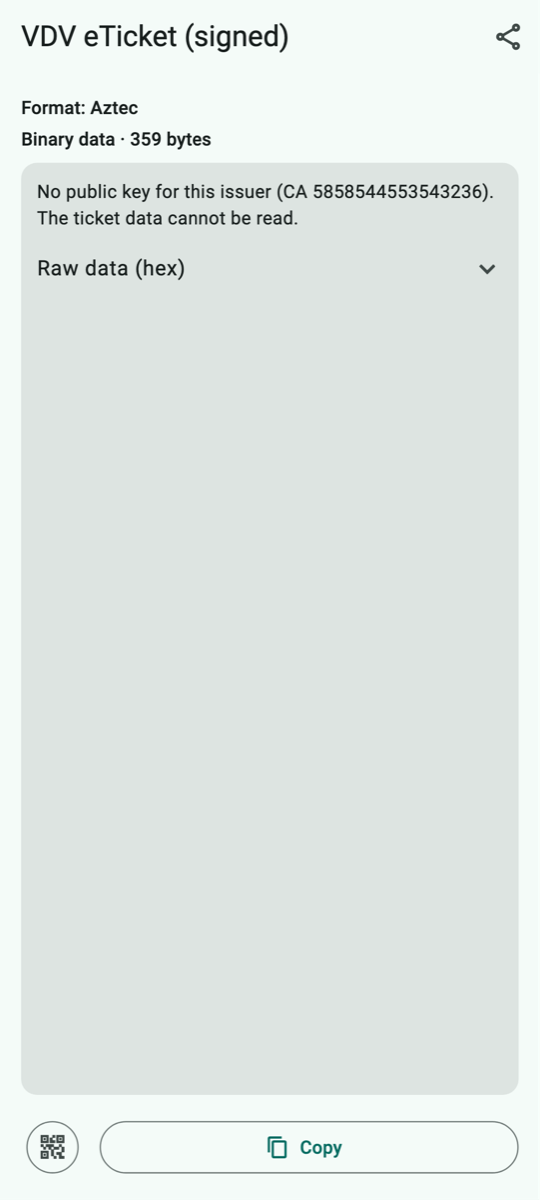
QR Viewer recognizes the code as “VDV eTicket (signed)” but finds no public key for this issuer. The app names the identifier of the certification authority (CA 5858544553543236 = “XXTEST26”) and reports that the ticket data cannot be read. It therefore does not show the name at all – not even partly. You can expand the raw data.
What you can do with it
View and copy the raw data. Without the matching key, nothing more is possible.
Keep in mind: QR Viewer only reads tickets whose issuer keys are publicly known and included in the app. An unknown issuer does not automatically mean that a ticket is forged – the app just cannot check it.